
Advanced Scheduling
Contents of this article
What is Advanced Scheduling?
Want your monitors to run only Monday through Friday, on weekends, or during a strict 9–5 window?
Visualping's Advanced Scheduling tool allows you to automatically run monitors within a specific timeframe. By using this feature, you can prevent notifications when inconvenient or outside of your working day.
How to configure scheduled checks?
Step 1:
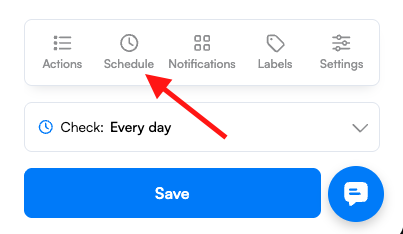
Enter the schedule menu in a monitor's settings
From the monitor settings panel, click on Schedule.
Step 2:
Choose time and days
Choose from one of the predefined options, or customize your schedule by clicking on the days of the week to enable or disable them. To change the timeframe, click and drag over the time boxes. You can select 30-minute slots, such as 9:30 AM to 5 PM, and the timeline displays the minutes. If a window starts or ends between slots, the timeline highlights every slot it overlaps.
Note: Currently, you can't select a unique time range for each day. Rather, the range is set for all active days.
Frequently Asked Questions
What timezone is the schedule set to?
The schedule is based on the Workspace timezone. For Business plan users, the workspace timezone can be explicitly set in Workspace Settings > General > Timezone. For other plans, the workspace timezone is automatically inherited from user.
Can I set more than one schedule block (e.g., 8am–9am and 4pm–5pm)?
Currently, advanced scheduling supports only one block per day.