
Setting up Microsoft Teams Notifications
Contents of this article
Overview
Visualping can notify you of a change through Microsoft Teams by sending alerts to a channel or chat via a webhook URL. The only supported method for new integrations is Microsoft Workflows.
⚠️ Office 365 Connectors are being permanently retired. Microsoft will disable all existing Connectors between May 18–22, 2026. If you are currently using a Connector webhook with Visualping, you must migrate to a Workflows webhook before that date to avoid losing notifications. For more information, see Microsoft's blog here.
Setting up a Workflows webhook
To generate a webhook URL in Microsoft Teams, follow Microsoft's official guide:
→ Create incoming webhooks with Workflows for Microsoft Teams (Microsoft Support)
Once you have your webhook URL, copy it and follow the steps below to connect it to Visualping.
Enable Teams notifications in Visualping
Follow the steps below to enable Teams notifications for a new or existing job.
Step 1:
Open job settings
Create a job or open the settings for an existing job.
Step 2:
Select Teams notification
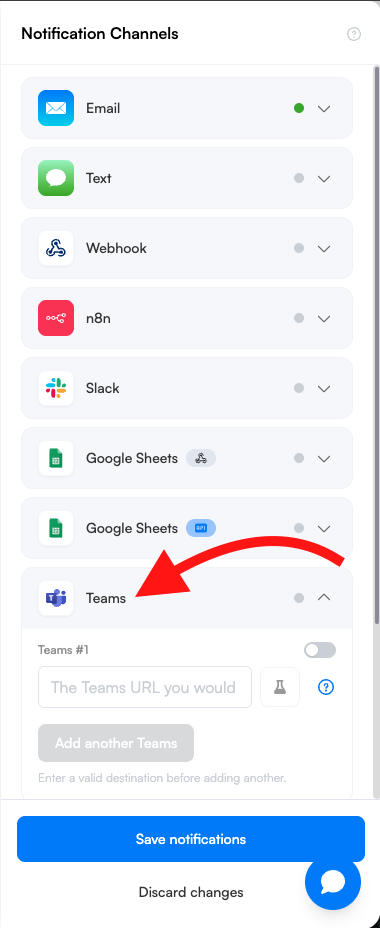
Click Notifications and then click Teams.
Step 3:
Paste the webhook URL and save
Enter or paste the Workflows webhook URL from your Teams account and click Save. Adding a valid Teams URL switches on Teams notifications automatically. The same applies when you add a valid Discord, Slack webhook, n8n or webhook URL to its notification settings. If you turned a destination off manually, it stays off until you switch it on.
Frequently Asked Questions
I am not receiving Teams notifications
Confirm the webhook URL was saved correctly in your Visualping job's Notifications settings.
Test the webhook by triggering a manual check on the job.
Verify the Workflow is still active in your Microsoft Teams account — it may have been paused or deleted.
The Workflow template is not available in my Teams
The webhook template may be unavailable depending on your Microsoft 365 plan or organization settings. Contact your IT admin to confirm that the Workflows app is enabled for your organization.
I'm having issues, what can I do?
If none of the steps above resolve the problem, reach out to our Support team. Include a screenshot, what you were trying to do, and any error messages so we can help faster.