
Can I monitor a password-protected page?
Yes, you can monitor a password-protected page. You will need to set up Actions on the monitor to type and submit your login details before each check. Here's how to create a monitor that logs in to Visualping. Keep in mind the same principles will apply to most login pages.
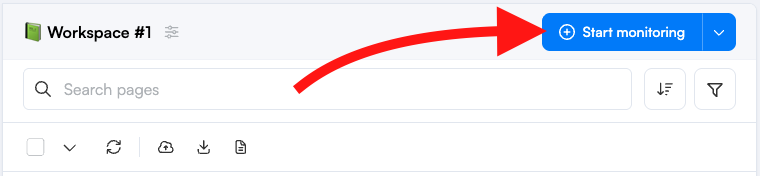
Step 1: On your dashboard, click Start monitoring. The monitor creator opens on the Single tab.
Step 2: Enter the webpage https://github.com/login or the login page of the site you want to monitor and click Go.

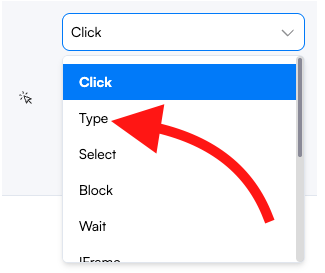
Step 3: Open the Actions panel and add a Type action.
Step 4: Click the selector icon next to the action and then select the email input field in the preview window.
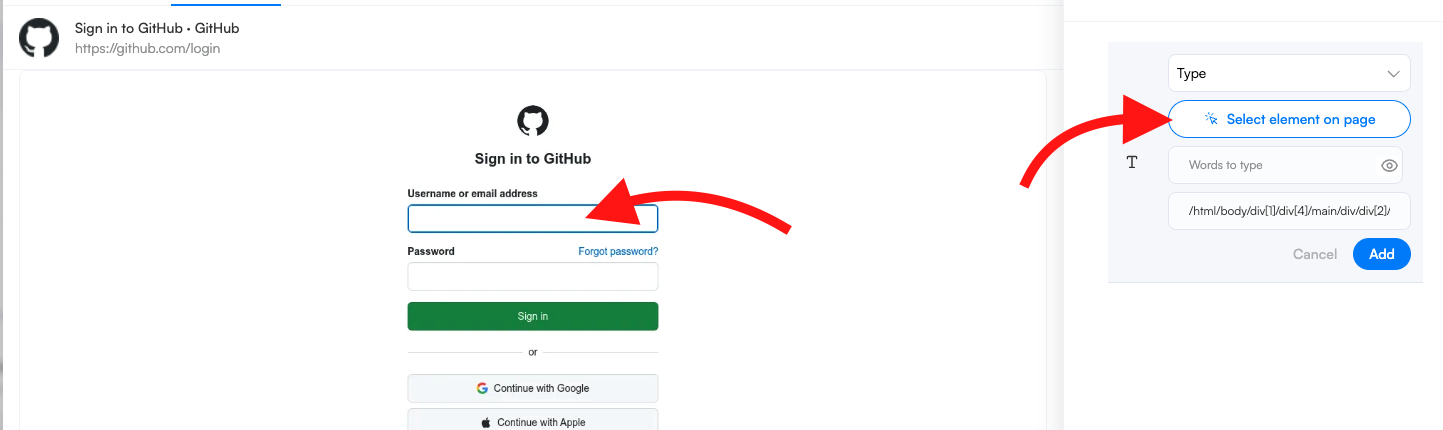
If you can't select the input field in the preview, you can enter the element ID, class name, or XPath instead. You can identify this by using the Chrome Inspect tool.
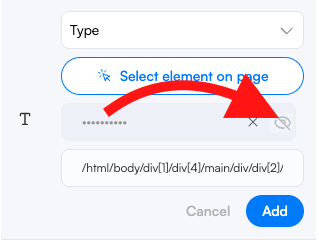
Step 5: Enter the email address in the Word to type field. Repeat the same steps for the password input field, and make sure to select the password input field in the preview window.
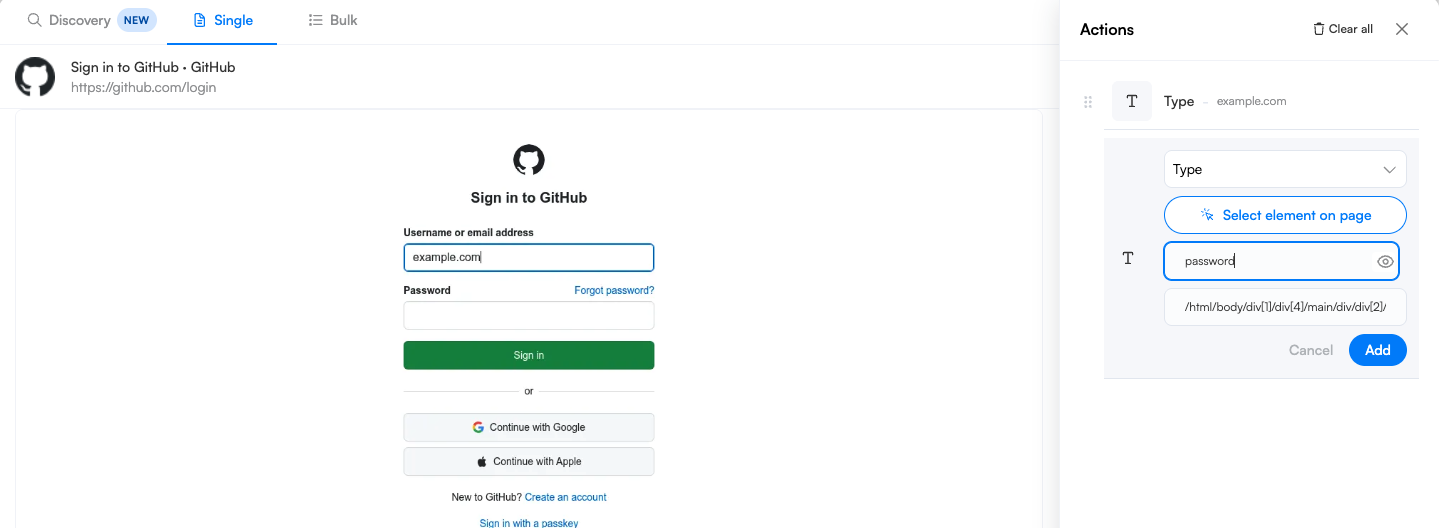
For passwords or other sensitive information, you can hide the text input by clicking the hide icon. Click it again to unhide it and make changes. Once the monitor is created, the text cannot be unhidden, only deleted. This is useful for shared accounts or workspaces with multiple users.
Step 6: Add a new Click action. Click the selector icon next to the action and select the Log in button in the preview window.
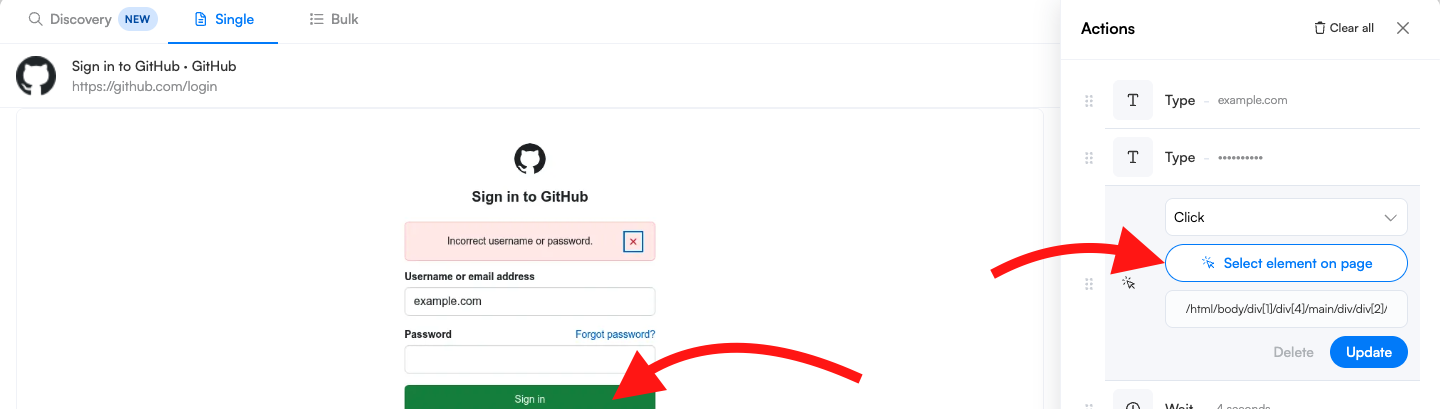
Step 7 (optional): Some sites take a while to log in, so the preview may not load or the check may fail. You can add a Wait action of at least 4 seconds to give the site more time to load the contents.
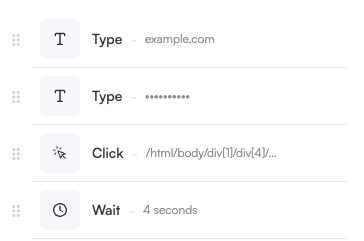
Step 8: Finish setting up your monitor and click Start monitoring.
Want to learn more about actions? Visit our Actions article he