
Using the block action
Contents of this article
Why use the block action?
Using the block action
Blocking multiple elements with one block action
Why use the block action?
Using a block action can help you remove unwanted elements from a page. You can use it to uncover hidden elements, block advertisements, carousels, and more.
Using the block action
Step 1:
The Actions panel
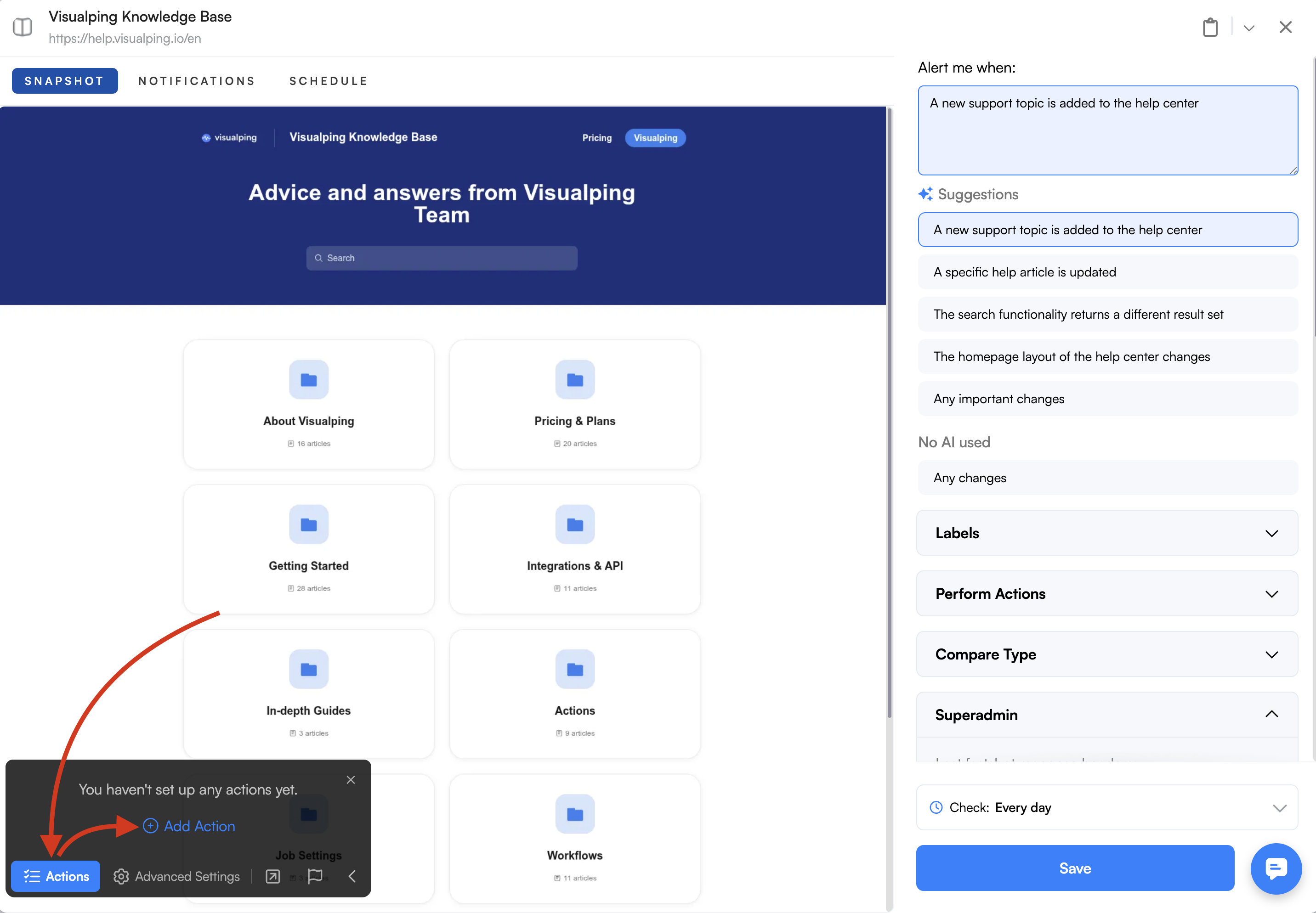
Open the Actions panel and select Add Action.
Step 2:
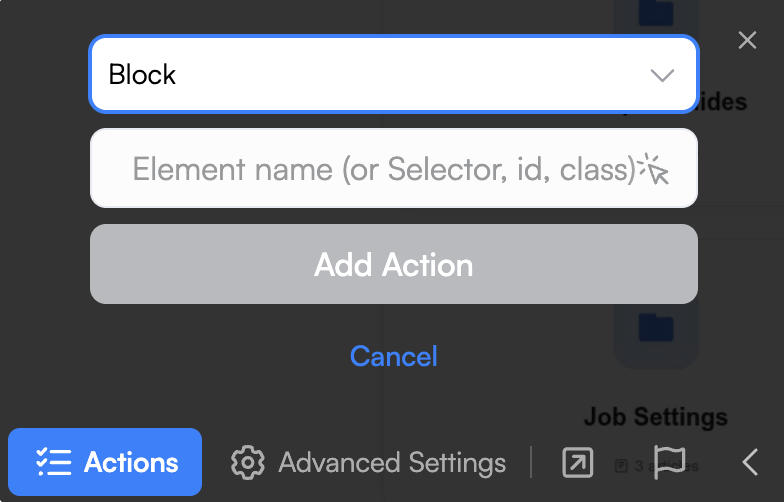
Select the Block action.
Step 3:
Select the element
Using the selector tool, click on the element you want to block in the preview. If you can't select the element or if it failed to apply, try using an ID, Class, or XPath. See the actions article for steps on how to use the selector tool or find the identifier of an element.
Blocking multiple elements with one block action
If you need to block several web elements, like ads, you can use the element’s ID or class from the code itself in a block action. The block action will find every element with that ID or class and block it.