
Using the iFrame action
Contents of this article
What's an iFrame?
An iFrame is like a website inside of a website. You have probably seen some before in the form of a map on a website or similar embeds.
An iFrame has its own url that is loaded locally into the page, however Visualping by default only fully loads the outer page, leaving the inner page unable to be actioned upon. To be able to use actions on the iFrame, you will need to use the iFrame action first.
How do I use the iFrame action?
Step 1:
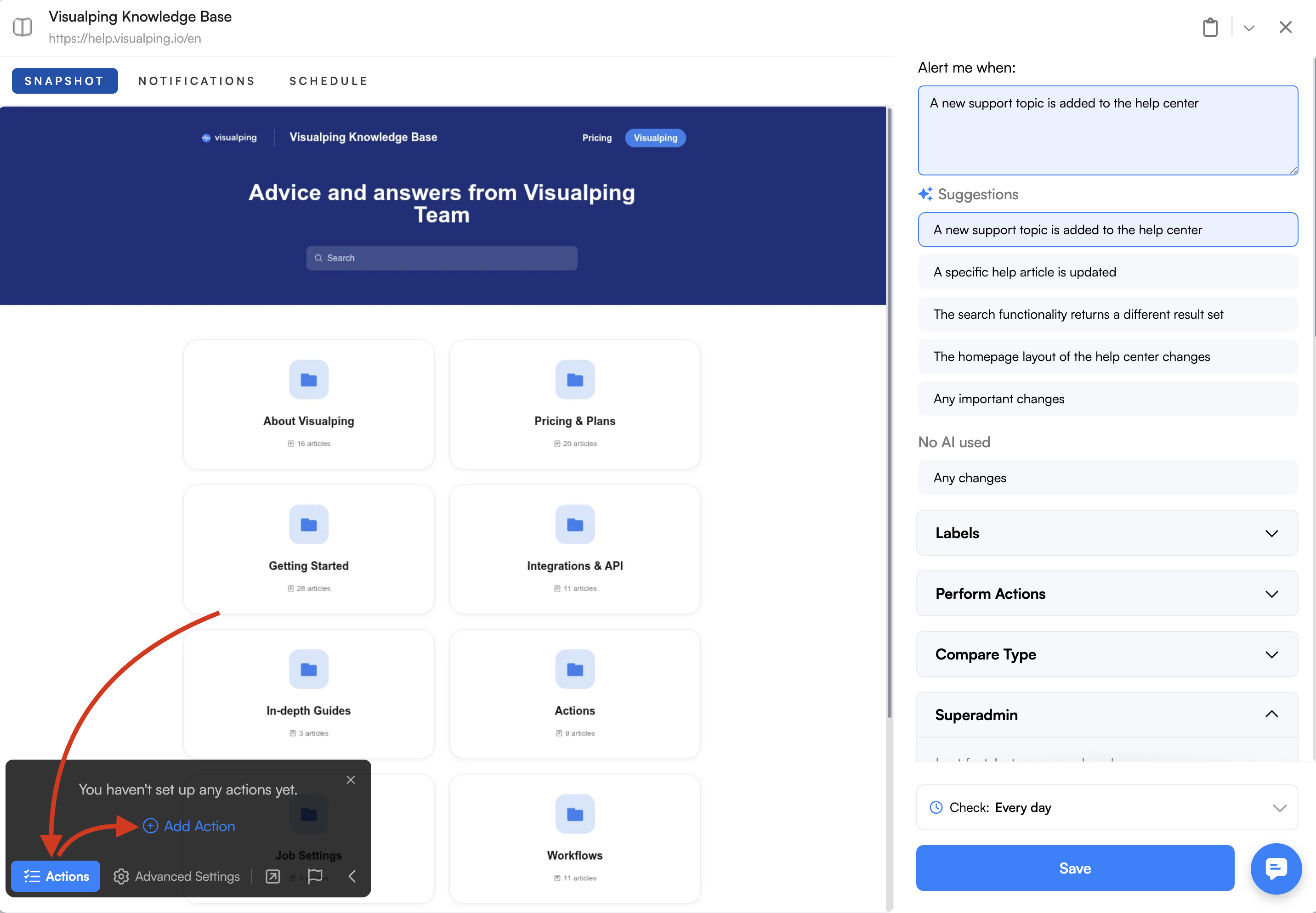
The Actions panel
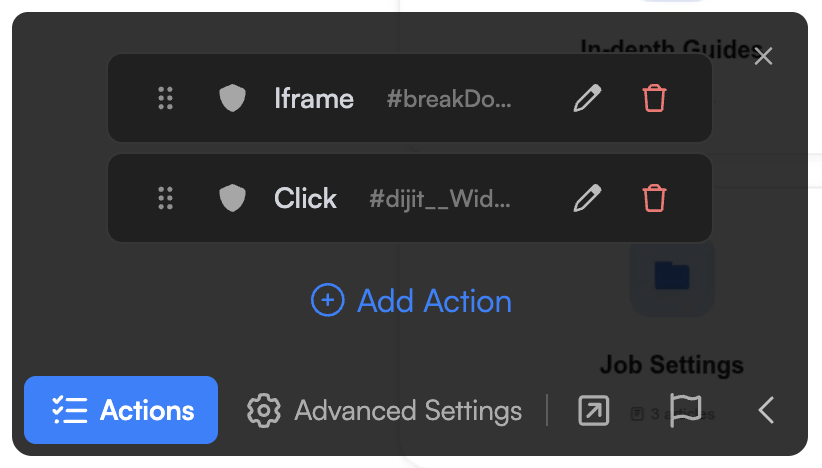
Open the Actions panel and select Add Action.
Step 2:
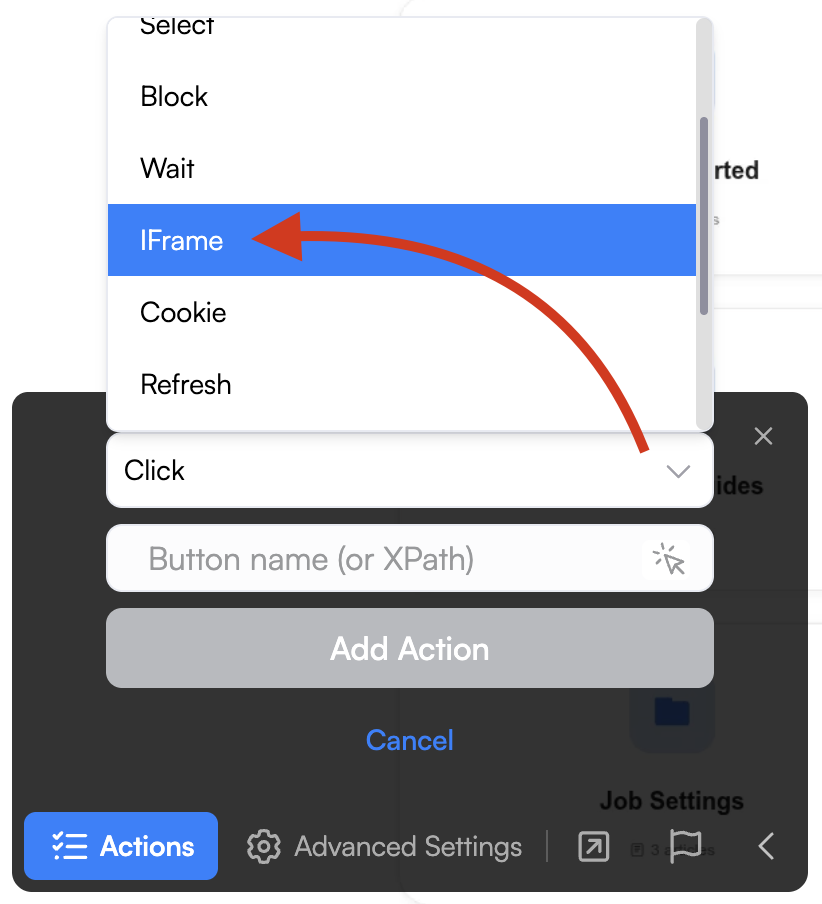
Select the iFrame action.
Step 3:
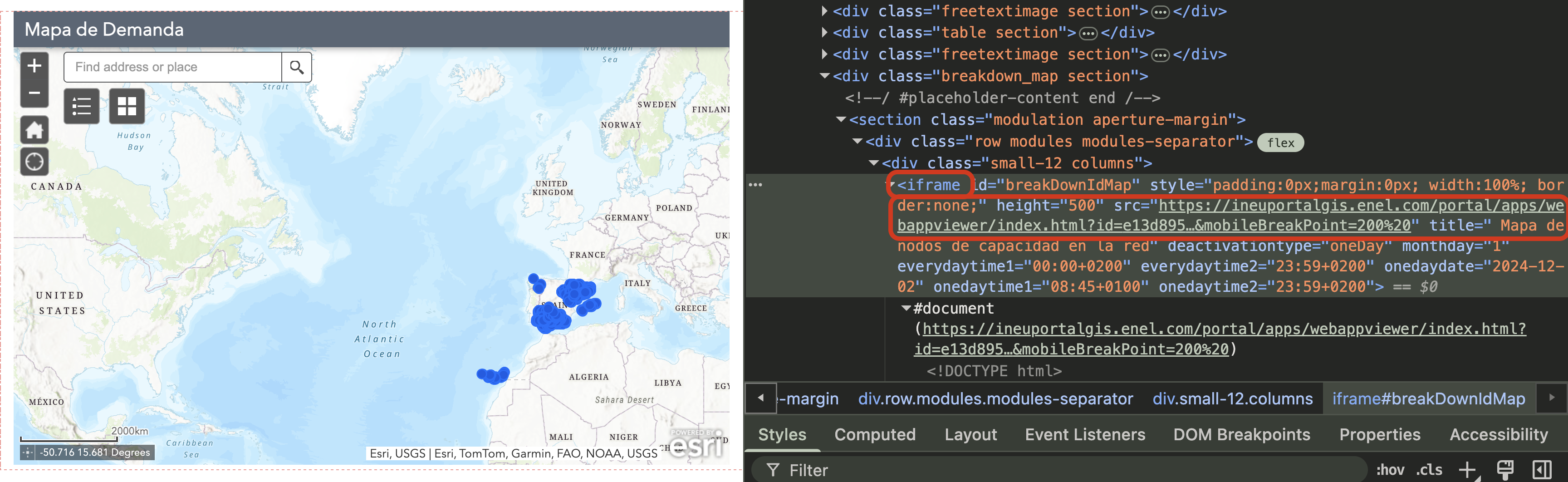
Find the iFrame in the HTML
The iFrame will be apparent when inspecting the code, as it will have the "iframe" title and contain a URL. You will need to copy the iframe's id, class, xPath or selector.
Step 4:
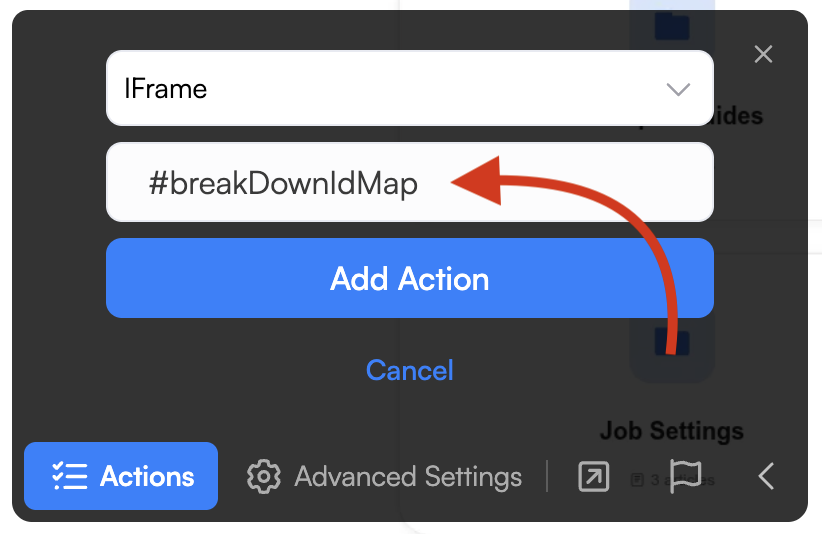
Select the element
Then paste your choice of the iframe's identifier in the input box of the iFrame action, making sure to follow the formatting guidelines [link to action article's table] for each choice.
Step 5:
Use actions on the iFrame element as normal!
Add the actions that you wanted to use after the iFrame action, it should now work properly.
Frequently Asked Questions
How do I know if an element is inside an iFrame?
Inspect the page using your browser's developer tools (right-click → Inspect). If the element you want to interact with is nested inside an <iframe> tag rather than directly in the main page HTML, you'll need to use the iFrame action before targeting it.
The selector tool isn't picking up elements inside the iFrame — why?
By default, Visualping's selector tool only operates on the outer page. Once you add the iFrame action and identify the iFrame, subsequent actions will be able to target elements inside it. If the selector still fails after adding the iFrame action, try using the iFrame's id, class, or XPath directly instead of the selector tool.
Can I use multiple actions inside an iFrame?
Yes. Once the iFrame action has been applied, all actions added after it in the sequence will operate within the iFrame context. You can chain clicks, types, scrolls, and other actions just as you would on a regular page.
What if the page has more than one iFrame?
Use a specific identifier (id, class, or XPath) that uniquely targets the iFrame you need. A generic selector may match the wrong iFrame if several are present on the page. Inspecting the HTML will help you find the correct one.
The iFrame action is not working — what should I do?
Try the following in order:
Confirm the element you're targeting is actually inside an iFrame by inspecting the page HTML.
Double-check the identifier you pasted into the iFrame action field and ensure it follows the correct formatting (e.g., #id, .class, or a full XPath).
Add a Wait action before the iFrame action to give the iFrame time to load.
If the iFrame is cross-origin (hosted on a different domain), Visualping may not be able to access its contents due to browser security restrictions.
If none of the above help, reach out to our Support team with the page URL and a description of the iFrame you're trying to target.