Using the Record Action
Contents of this article
What is the Record action?
The Record action lets you interact with a page in your browser. This includes clicking buttons, filling in fields, scrolling, navigating and Visualping will replay those exact steps on every check. This is useful for pages that require interaction before the content you want to monitor is visible, such as pages with cookie banners, dropdowns, or login screens.
This means that you can record your steps once and Visualping will repeat them automatically on every subsequent check.
Requirements
The Visualping Chrome extension is required to use the Record action. The extension captures your interactions live in the browser so they can be saved to your monitor's action sequence.
If you do not have the extension installed, you can get it from the Chrome Web Store. The Record action is available on all plans, including Free. Upon installing the extension, please accept the permissions to allow for the functionality.
Using the Record action
Step 1:
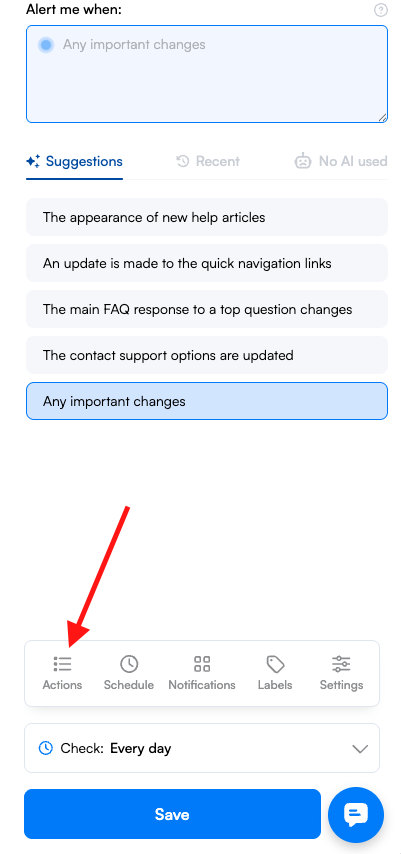
Open the Actions panel
Open the Actions panel on your monitor.
Step 2:
Click Record Actions
Select Record Actions from the action type list. This will open a live recording session in your browser using the Visualping Chrome extension.
Note: The Visualping Chrome extension must be installed for the recording session to launch. If the extension is not detected, you will be prompted to install it before continuing.
Step 3:
Perform your actions on the page
With the recording session active, interact with the page as you normally would. You can:
Click buttons, links, or other elements
Type into input fields (such as a username or search box)
Navigate to a different URL
Visualping captures each interaction in sequence as you perform it.
Step 4:
Stop recording and save
When you have finished, stop the recording session. The captured steps are automatically added to your monitor's action sequence. Save the monitor to apply the changes.
Note: After saving, Visualping will run a baseline check using your recorded actions. Review the job preview to confirm the page is captured as expected. If a step fails, you can edit or remove individual actions from the action sequence as needed.
Use cases
The Record action is well suited for situations where the content you want to monitor is not visible on first page load. Common examples include:
Cookie banners and consent popups — Record a click to dismiss the banner so it does not obscure the monitored area on every check.
Product option selectors — Record a dropdown selection to set a specific size, colour, or variant before the screenshot is taken.
Login-protected pages — Record your login steps so Visualping can access the page on your behalf. See Using the action tools to enter login details for more on monitoring pages behind authentication.
Multi-step navigation — Record a sequence of clicks that leads to the specific page or section you want to monitor.
Frequently Asked Questions
Do I need the Chrome extension to use the Record action?
Yes. The Visualping Chrome extension is required. It enables the live recording session in your browser. Without it, the Record action cannot be started.
How often are the recorded actions replayed?
On every check. Each time Visualping visits the page, it replays the full recorded action sequence before taking a screenshot.
Can I edit the actions after recording?
Yes. Once a recording is saved, the individual steps appear in your monitor's action sequence. You can reorder, edit, or delete any step from there. You can also add further manual actions (such as a Wait) to the sequence after recording.
What plan is required to use the Record action?
The Record action is available on all plans, including Free.
My recorded actions are not working correctly — what should I try?
Check the job preview after saving to see if any step produced a warning or error. Common causes include page elements that load slowly (add a Wait action after the relevant step) or elements that have changed since the recording was made (re-record the affected step). If the issue persists, contact our Support team with the page URL and a description of what you recorded.