
Is it possible to edit jobs in bulk?
The bulk edit feature is included with any of our Business plans. Currently, you can bulk run, activate, deactivate, pause, delete, label, move, export, and edit monitor settings. We are working on adding more bulk edit features in the near future so feel free to send feature requests to our Customer Success Team.
When bulk editing, you can also toggle mobile view to switch monitoring between desktop and mobile across all selected jobs at once. In the Advanced Settings panel, error alerts now include the same options available when editing a single job. You can leave alerts set to by default, send them immediately, or trigger them after N consecutive errors by setting a threshold for all selected jobs at once. When bulk moving jobs to another workspace, the workspace dropdown automatically filters out any workspace that already contains all the selected jobs, so you won't see confusing no-op options.
Preview of bulk actions:

List of actions (List from left to right):
Checkbox: Select all jobs including inactive jobs. Signifies whether all jobs are selected, some jobs were selected, or no jobs were selected.
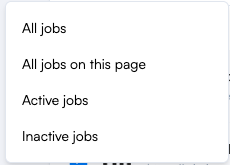
Arrow down: Can select one of the options below
Refresh Icon: Force a check on all the jobs selected
Play Icon: Activates all the jobs selected
Pause Icon: Deactivates all the jobs selected
Trash Can Icon: Deletes the jobs selected
Tag Icon: Bulk add/remove labels
Two Arrow Icon: Move jobs selected to other workspaces
Download Icon: Export jobs selected to an Excel or CSV format with different options
Page Icon: Leads to our reports functionality. For more information on our report functionality, please check here
Settings Box: Bulk edit settings. For more information, check this help article out here.