How do I deactivate my account?
Contents of this article
Before you deactivate your account!
Deactivating a Personal account
Deactivating a Business account
Deactivating an account on a Business Trial
Before you deactivate your account!
Be aware that once your account is deactivated, you will need to contact us by email to free your email so you can reuse that email for a new account.
If you are receiving too many alerts, check out our articles on reducing false positives and deactivating jobs.
You can also opt out of our marketing emails by changing your email preferences from the link found at the bottom of a previous email sent by Visualping.
Deactivate a Personal account
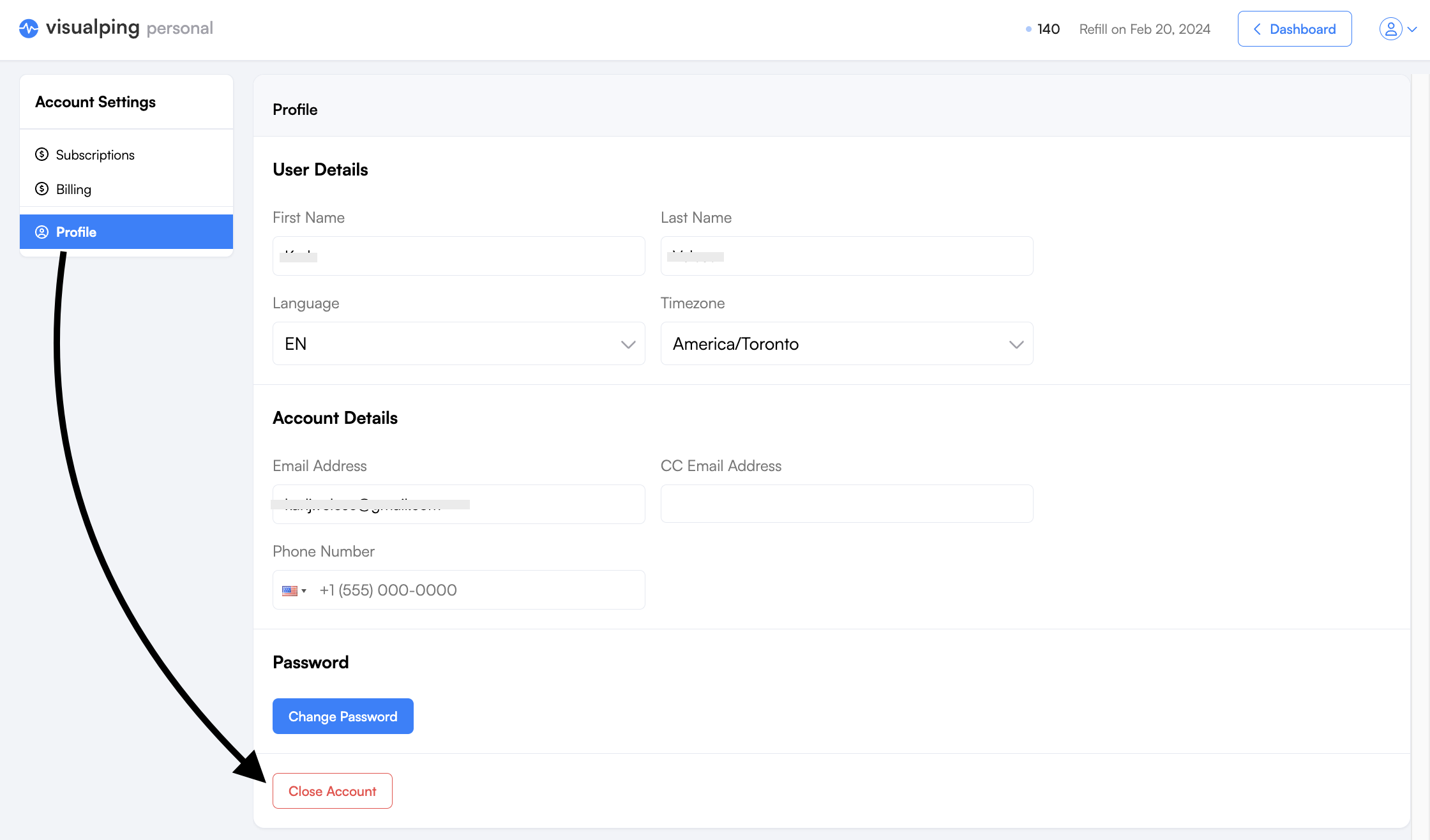
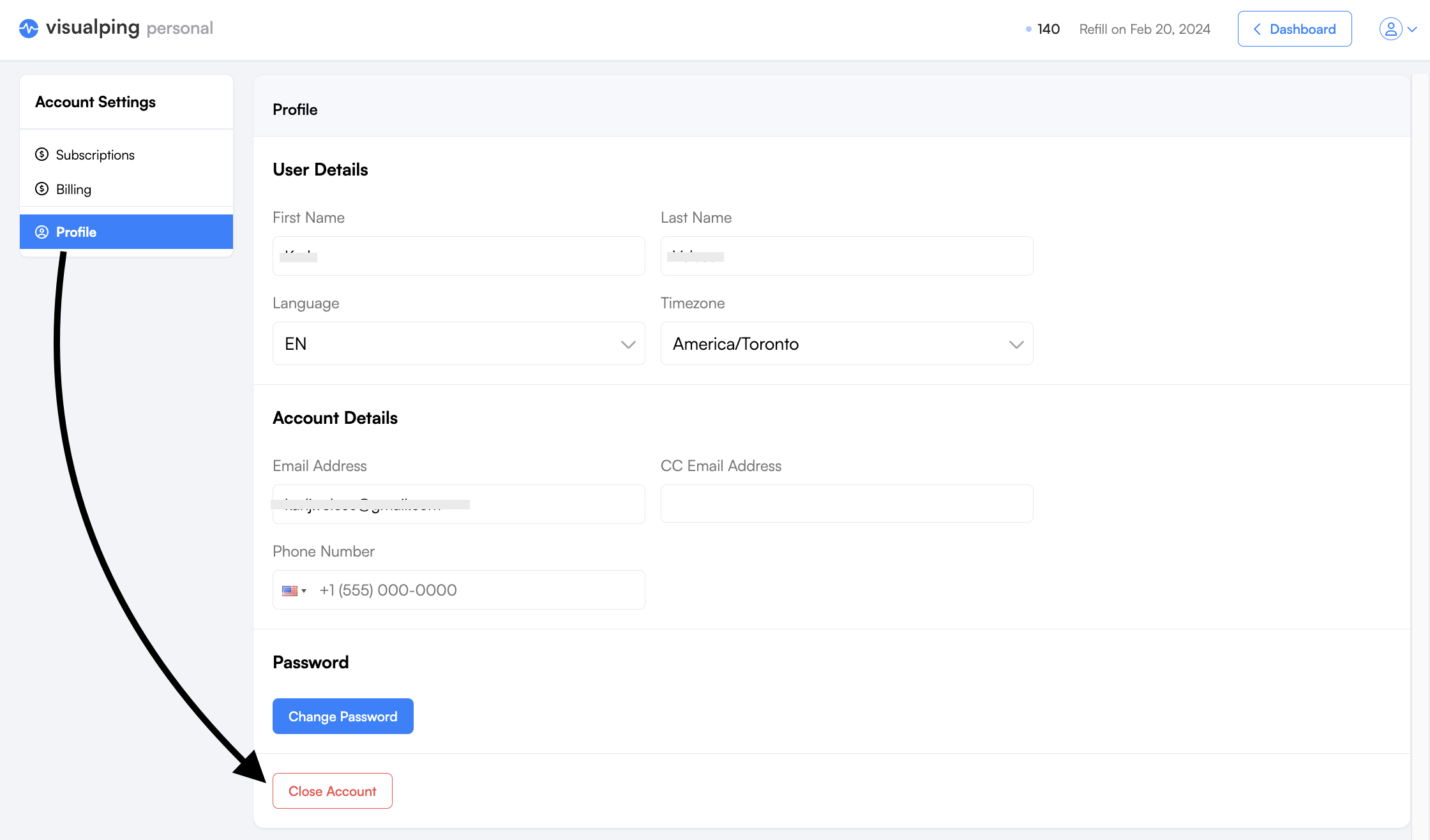
To deactivate your Personal account, go to your dashboard and click on Settings > Profile > Close Account. If you don't see the Close Account option, you may be an Admin of a Business account. Follow the steps here.
Deactivate a Business account
Step 1:
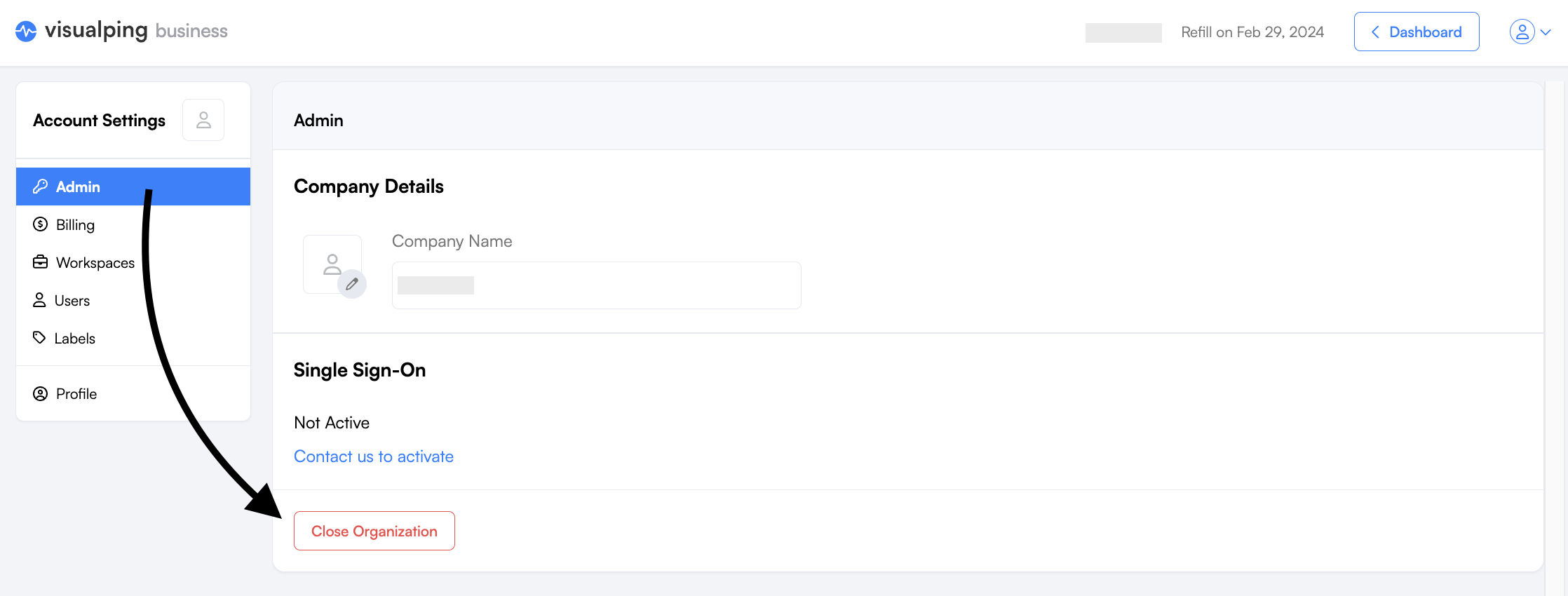
To deactivate your Business account, you'll need to close the organization first. From your dashboard, click on Settings > Admin > Close Organization. This action requires an Admin role, otherwise, the button is disabled. Editor and Viewer users can close their accounts directly.
Step 2:
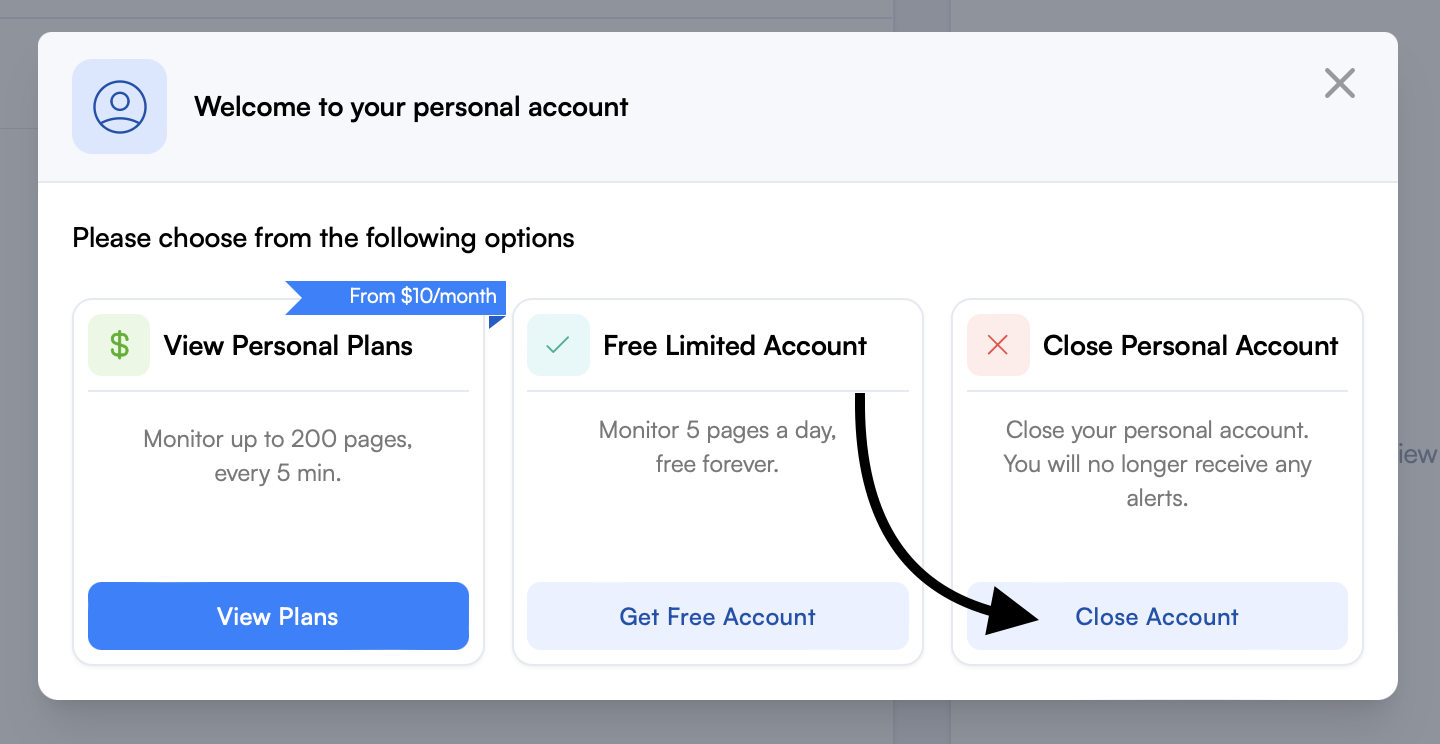
Then select Close Account from the pop-up.
Or go to Settings > Profile > Close Account.
Deactivating an account on a Business Trial
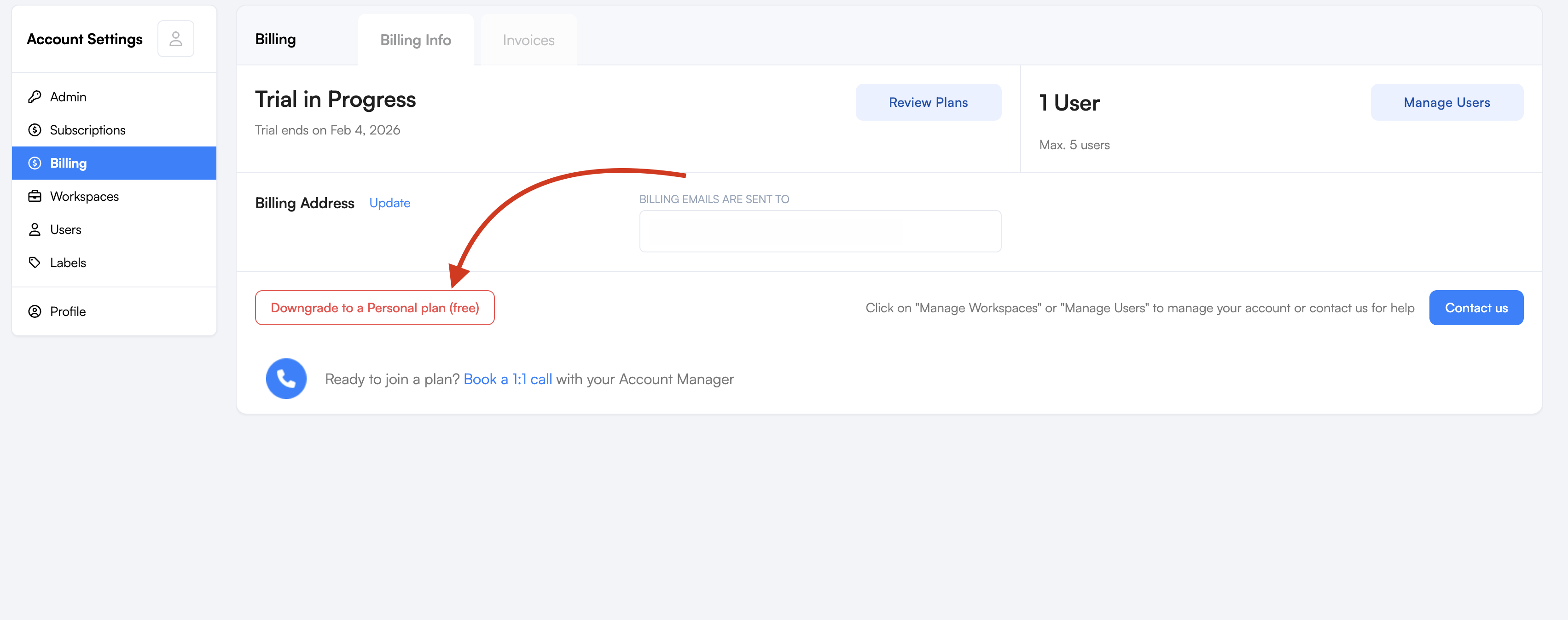
To deactivate an account on a Business trial, go to your dashboard and click on Settings > Billing > Downgrade to a Personal plan (free). From there, you can either downgrade to a free plan then follow the steps to deactivate a personal account, or directly deactivate your account.