
How to use the script action
Contents of this article
What is a script?
Scripts enable you to manipulate page elements, such as clicking buttons, opening tabs simultaneously, revealing href links, and more using JavaScript code.
Note that proficiency in JavaScript is required to utilize this capability, as direct support is not offered.
How do I use the script action?
Pro Tip: You can use the Chrome Dev Tool Console tab to test your Javascript.
Step 1:
Open the job settings
From the dashboard, click New Job or open the settings of an existing job.
Step 2:
Create a script action
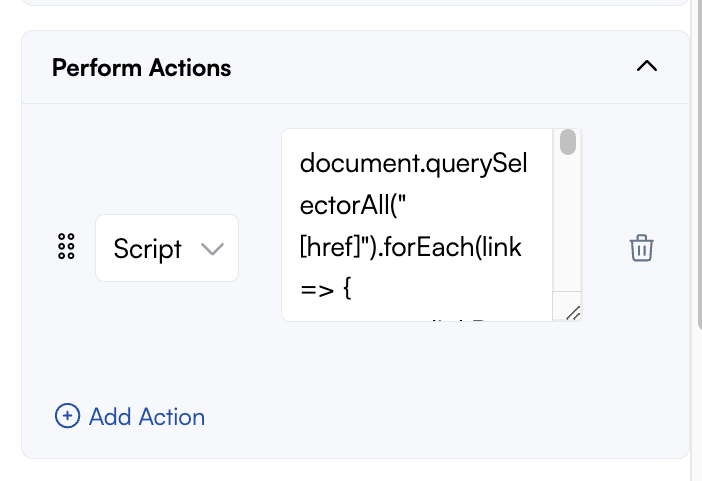
Enter the page URL and click Go. Then, open the Perform Actions panel. Select the Script action from the dropdown menu and enter the Javascript.
Step 3:
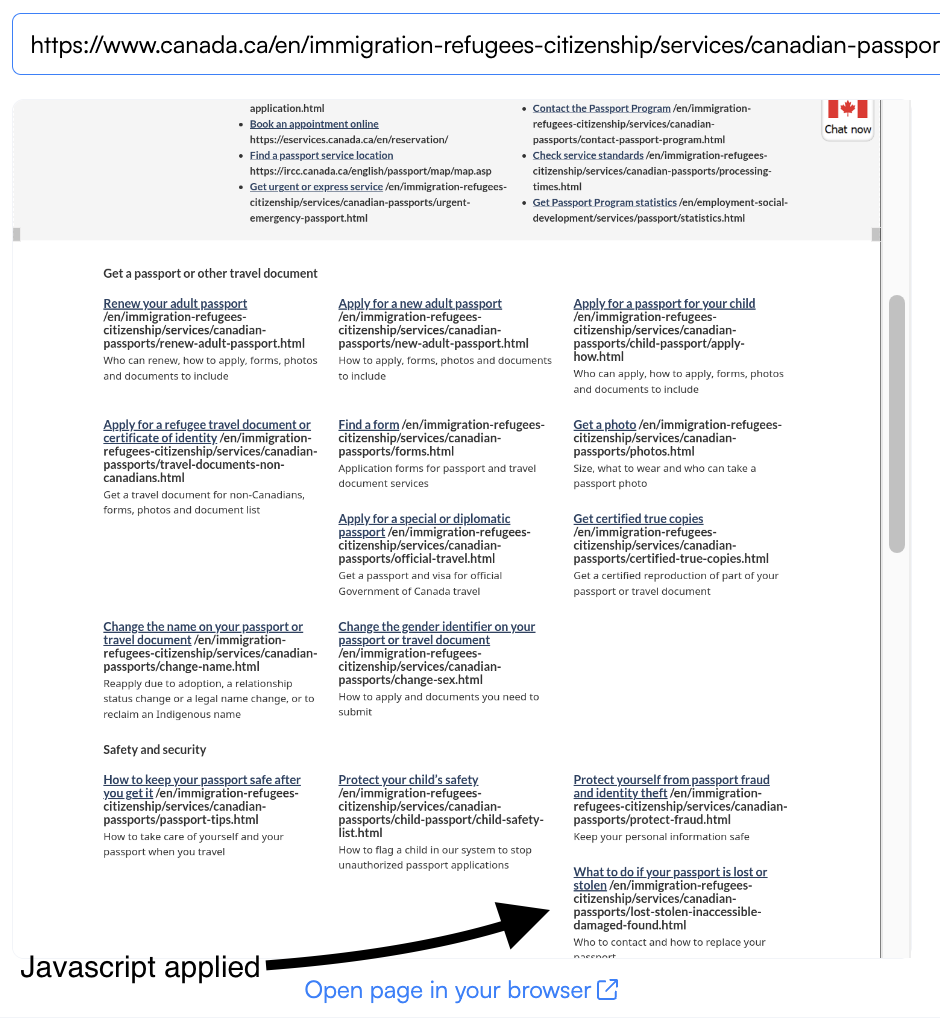
Check the script's effects
Confirm that the Javascript was applied in the site preview depending on the intended use case. For example:
Script action use case and examples
Feel free to utilize the JavaScript codes provided below for various common scenarios. We will continuously update and expand the examples as we discover new ones.
Clicking on multiple buttons
Use case: Click on multiple elements to expand the tab commonly used on FAQs.
Example URL:https://register.fca.org.uk/s/firm?id=001b000000MgGCUAA3
Javascript code: Replace the#page-nav-content button[aria-expanded="false" with the element ID, class, or CSS Selector of the accordion's button.
var buttons = document.querySelectorAll('#page-nav-content button[aria-expanded="false"]');
buttons.forEach(element => { element.click() });
Display Inline HREFs
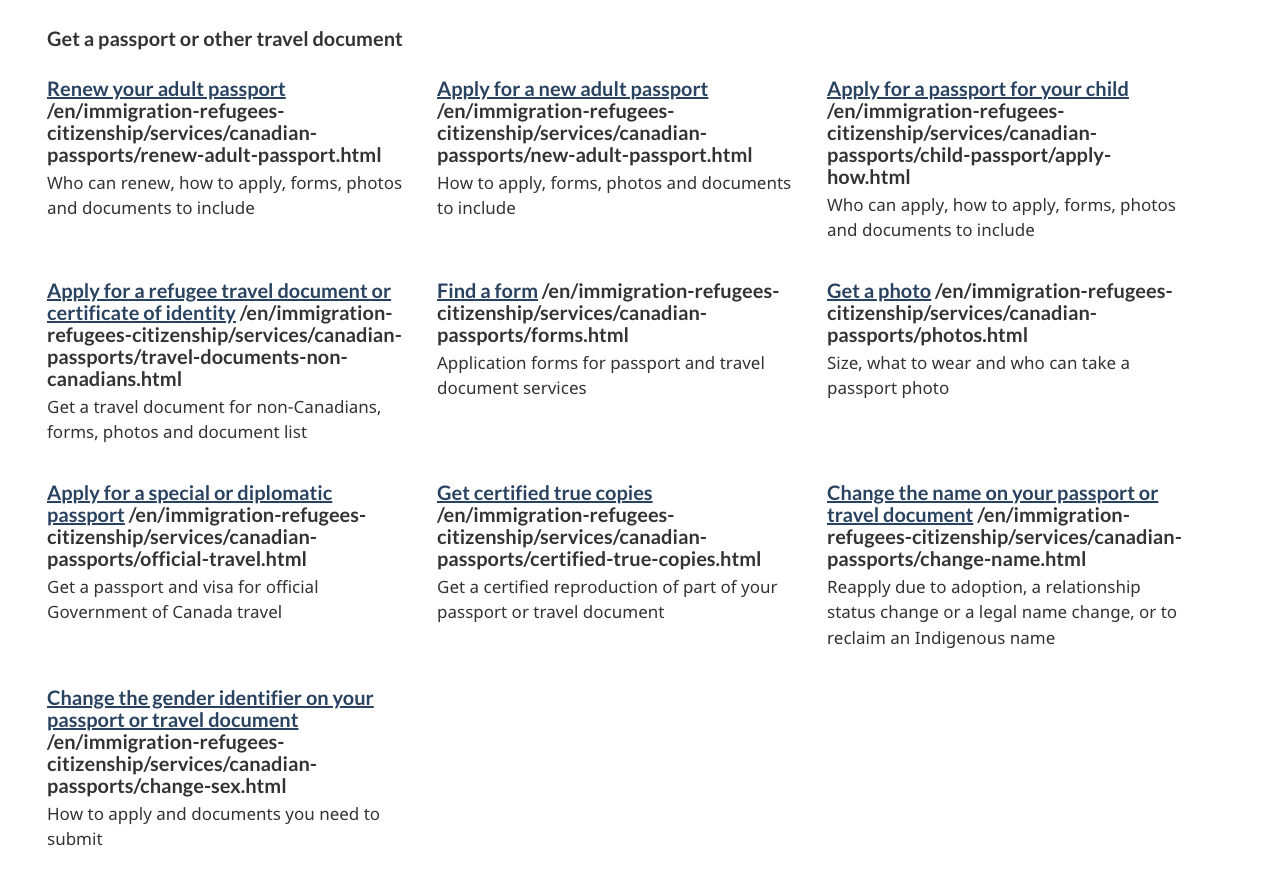
Use case: Display the HREF links on hyperlinked texts, menu, or button beside it to monitor URL changes.
Example URL:https://www.canada.ca/en/immigration-refugees-citizenship/services/canadian-passports.html
Javascript code
Display the full URL:
document.querySelectorAll("[href]").forEach(link => {
        const linkRect = link.getBoundingClientRect();
        if (linkRect.width > 0 && linkRect.height > 0) {
            const href = link.getAttribute("href");
            const hrefSpan = document.createElement("span");
            hrefSpan.textContent = ` ${href} `;
            link.insertAdjacentElement("afterend", hrefSpan);
        }
    });
Display only the base URL:
document.querySelectorAll("[href]").forEach(link => {
    const linkRect = link.getBoundingClientRect();
    if (linkRect.width > 0 && linkRect.height > 0) {
        const href = link.getAttribute("href");
        const baseDomain = href.split("/")[2]; // Extracting base domain
        const hrefSpan = document.createElement("span");
        hrefSpan.textContent = ` ${baseDomain} `;
        link.insertAdjacentElement("afterend", hrefSpan);
    }
});Example:
Remove all class names and IDs
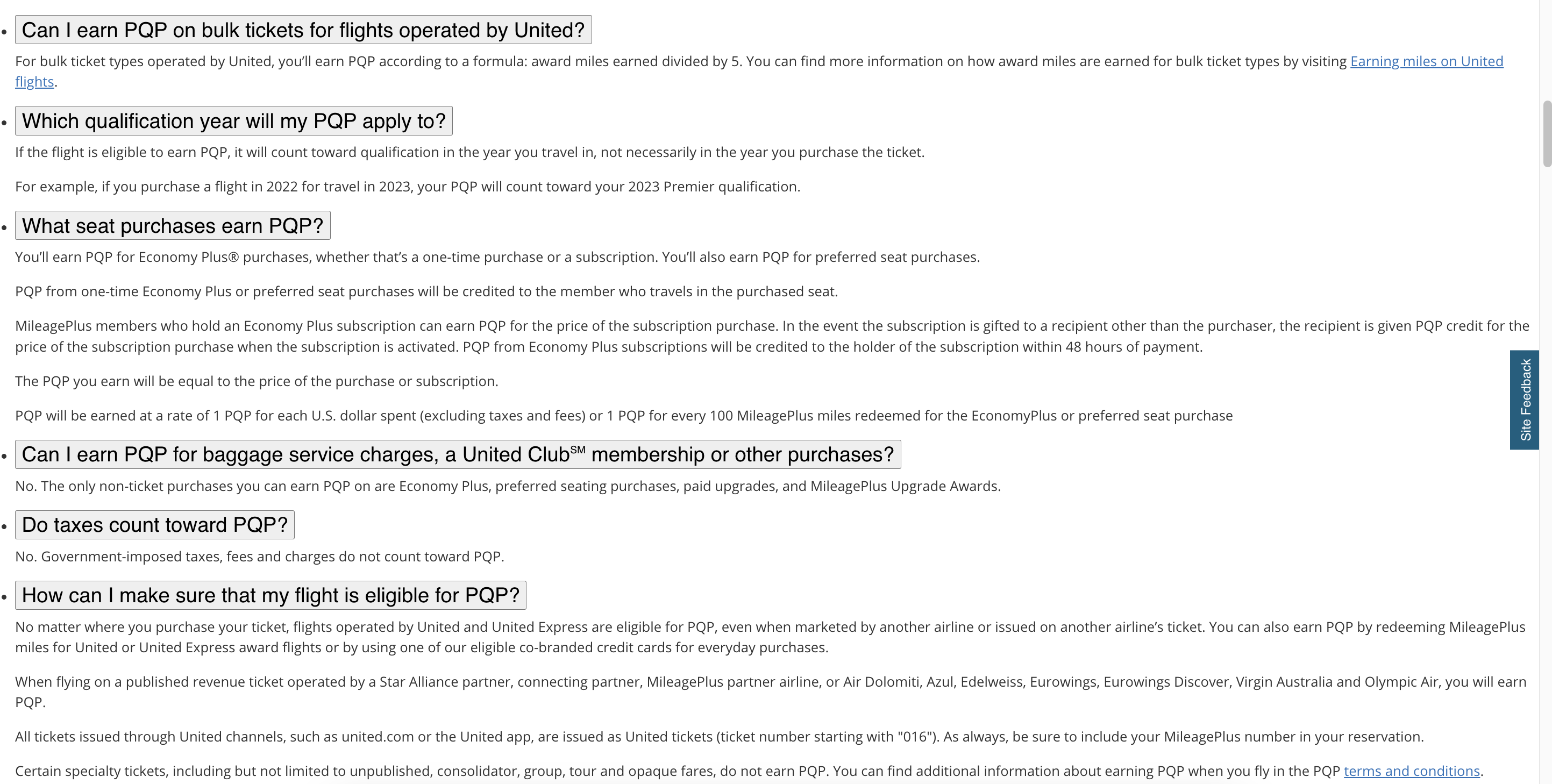
Use case: Remove element class names and IDs to remove all styling making it easier to monitor all changes such as opening all panels and more.
Example URL:https://www.united.com/ual/en/us/fly/help/faq/premier-qualification.html
Javascript code:
const elements = document.querySelectorAll('*');

function removeClassNamesAndIDs(element) {
  element.removeAttribute('class');
  element.removeAttribute('id');
}

elements.forEach(element => {
  removeClassNamesAndIDs(element);
});Example:
Troubleshooting
It works in the console, but not in Visualping?
In some cases, the script will work in the console but not work once used in Visualping. There are a few reasons why this could be the case. The most common one is bot detection: some websites block us due to our status as bots and will stop some actions from happening.
What if I really need a script but don't know Javascript?
Then your best bet is to ask your favorite AI! Start by finding the element you need to modify, copy it's code, and give it to the AI along with some instructions. It won't always get it right the first time, especially for harder tasks, but it is pretty good at problem solving, especially if you give it error messages or problems that arise as feedback.