
Making a Strong Prompt for Reports
Contents of this Article
Why Use Report Summary & Analysis?
Tips and Tricks for Writing Your Prompt
Why Use Report Summary & Analysis?
Reports give you a bird's-eye view of all detected changes over a period of time — but when you're tracking dozens of pages, reading through every entry can be overwhelming. Enable Report Summary & Analysis and our AI will produce a written summary tailored to your needs based on your prompt, so you and your team can understand what happened at a glance.
Tips and Tricks for Writing Your Prompt
Step 1:
Enable Report Summary & Analysis
When generating a report, toggle on Report Summary & Analysis in the report settings.

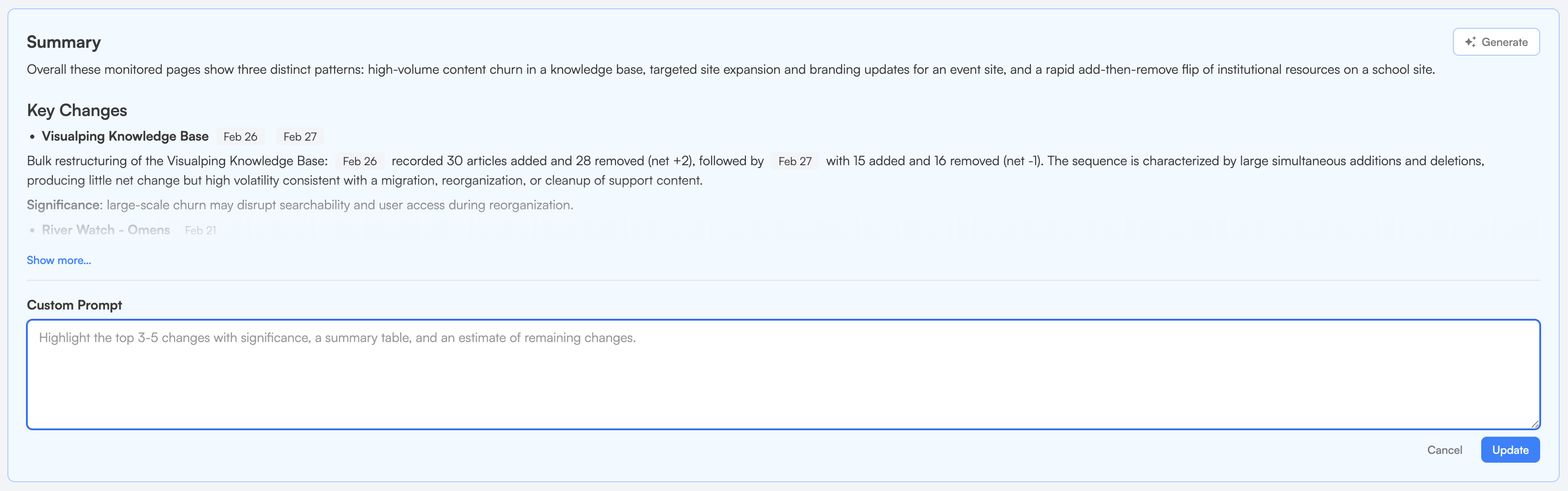
Already generated a report? No problem. You can add or update the summary prompt any time from within the report itself. Click Edit next to the Custom Prompt tab, update your prompt, and click Generate to create a fresh summary.
Step 2:
Tell the AI What You're Monitoring
Give the AI some context about the kinds of pages in your report. This helps it understand what's relevant and what isn't.
For example: "This report covers competitor pricing pages and product listings. Summarize any price changes, new product launches, or availability updates."
Step 3:
Highlight What Matters Most
Tell the AI which types of changes are most important to you so it can prioritize and call them out clearly in the summary.
For example: "Focus on any regulatory updates or policy changes. Flag anything that may require action from our compliance team."
You can also ask the AI to surface specific keywords: "Highlight any changes that include the words 'recall', 'safety warning', or 'mandatory update'."
Step 4:
Set "Ignore" Rules
If your report contains noise — footer updates, cookie banners, or other low-importance changes — tell the AI to leave those out so the summary stays focused.
Use words like "ignore", "exclude", or "disregard": "Ignore any changes to navigation menus, footers, or cookie banners. Focus only on changes to main page content."
Step 5:
Specify a Summary Format
By default, the AI produces a paragraph-style summary. But you can ask for a specific format that's easier to scan and act on:
Bulleted List: "Summarize the most important changes in a bulleted list, with one bullet per monitored page that had a significant change."
Table Format: "Present the changes in a table with three columns: Page Name, Change Summary, and Recommended Action."
Executive Summary Style: "Write a 2–3 sentence executive summary of the most significant changes, followed by a bulleted list of notable findings."
Specific Language: "The summary should be in French." (By default, summaries are in English.)
Putting it all together, your prompt might look like this:
"This report covers government regulatory websites and public health agency pages. Summarize any policy changes, new guidelines, or enforcement notices. Highlight any mentions of 'recall', 'advisory', or 'effective date'. Ignore changes to navigation, headers, and footers. Present the summary as a bulleted list with one bullet per relevant page, followed by a one-sentence 'Action Required' note where applicable."