
Private Channels for Slack Notifications
Contents of this article
Before you start
Visualping can send alerts to private Slack channels as well as public ones. Private channels need a few extra steps so that Visualping can see and post to them.
Before you begin, make sure that:
You're on a Business plan.
An Admin has already connected Slack to Visualping. See App for Slack Notifications.
A private channel only appears in a monitor's channel list when all three of these are true:
The Visualping app has been added to the private channel in Slack.
A Visualping Admin has authorized private channels.
You're a member of the private channel yourself.
Sending alerts to a private channel
Step 1:
Add Visualping to the private channel
In Slack, open the private channel and go to its Integrations tab. Click Add apps, search for Visualping, and add it. You can also type /invite @Visualping in the channel.
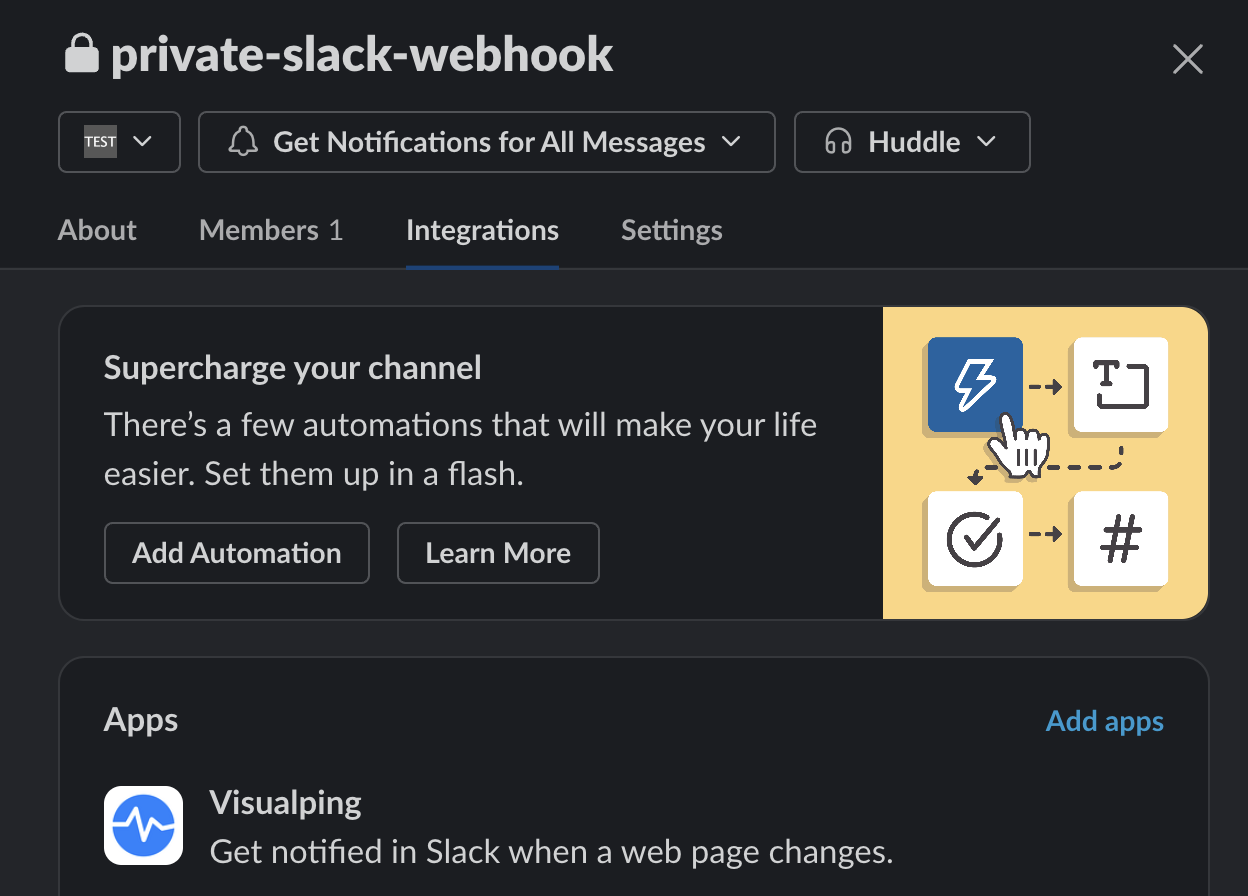
Note: Depending on your Slack workspace's settings, you may need a Slack workspace admin to add apps to channels.
Step 2:
Authorize private channels in Visualping (Admins)
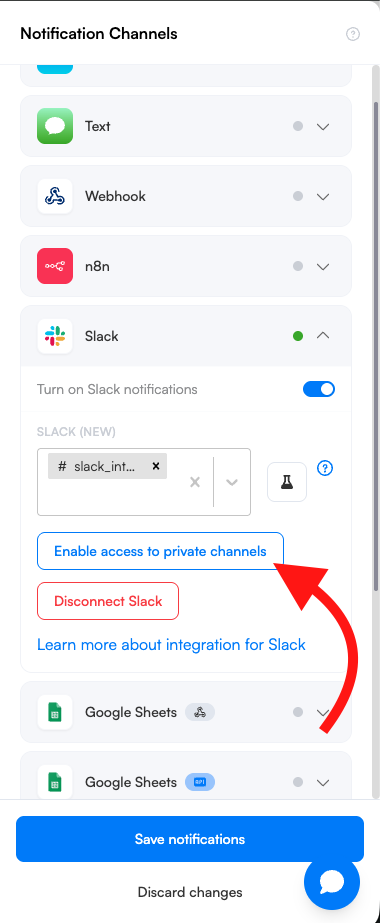
Go to Account > Integrations, find Slack, and click Authorize private channels. A Slack authorization tab opens.
Step 3:
Allow access in Slack
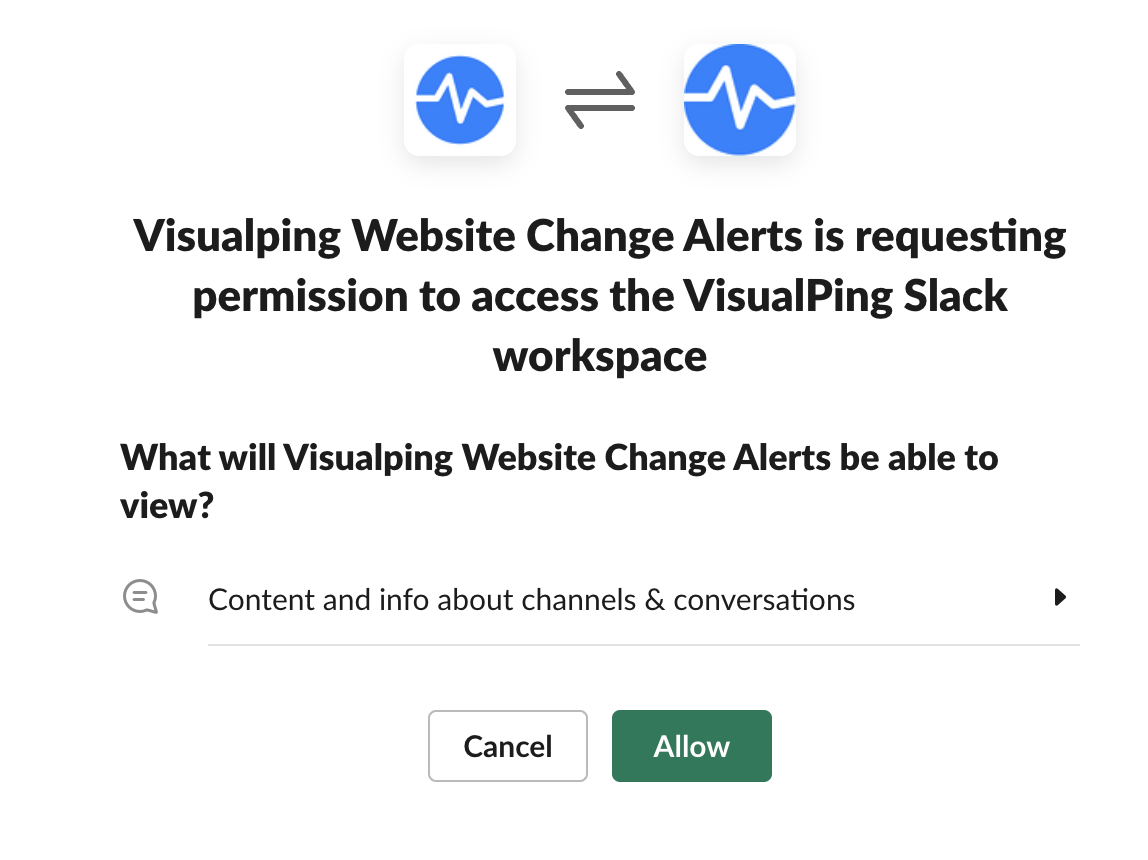
Sign in to Slack if prompted, review the permissions, and click Allow. Then return to Visualping.
Step 4:
Select the private channel on your monitor
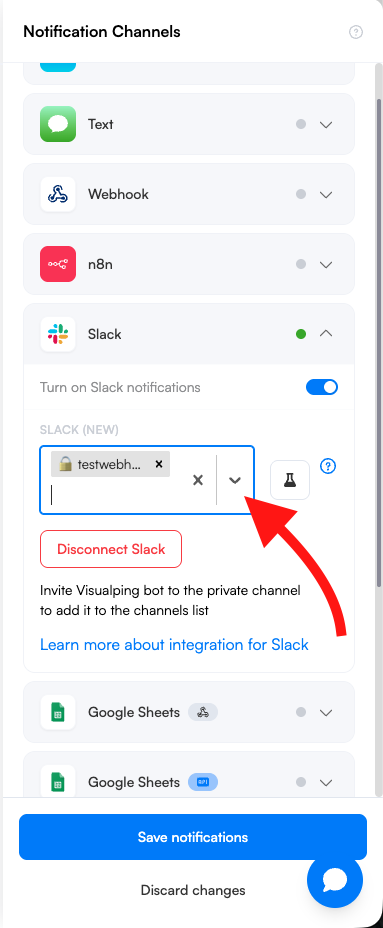
Open the monitor's settings, go to Notifications, and click Slack. Private channels you can use are shown in the channel list with a 🔒. Select the one you want.
Step 5:
Test and save
Click Test to post a sample alert to the channel, then click Save. Everyone who's a member of the private channel in Slack will see the alerts there.
Frequently Asked Questions
I don't see my private channel in the list. Why?
Make sure the Visualping app has been added to the channel in Slack (Step 1).
Make sure an Admin has authorized private channels in Visualping (Step 2).
Make sure you're a member of the private channel yourself. A teammate who is a member may be able to see it even if you can't.
Archived channels aren't shown.
Alerts to my private channel stopped. What should I do?
If the Visualping app was removed from your Slack workspace or its access was revoked, an Admin needs to connect Slack again from Account > Integrations, then click Authorize private channels again. Reconnecting Slack doesn't restore private channel access on its own. Also check that the Visualping app is still a member of the private channel.
Who receives alerts sent to a private channel?
Everyone who's a member of the private channel in Slack. To give someone access to the alerts, add them to the channel in Slack.
I'm having issues, what can I do?
Reach out to our Support team at support@visualping.io. Include the monitor name, the private channel name, and any error messages so we can help faster.