
How to use the cookie action
Contents of this article
What are cookies?
When a user visits a website, the website may store a piece of data called a cookie in the user's web browser. Later, when the user visits the website again, the website may retrieve the cookie from the browser. This data can be many things, like your location or name. You can use a cookie action to mimic the same behavior.
How to use the cookie action
Step 1:
Open the website in a new tab.
Step 2:
Inspect the page
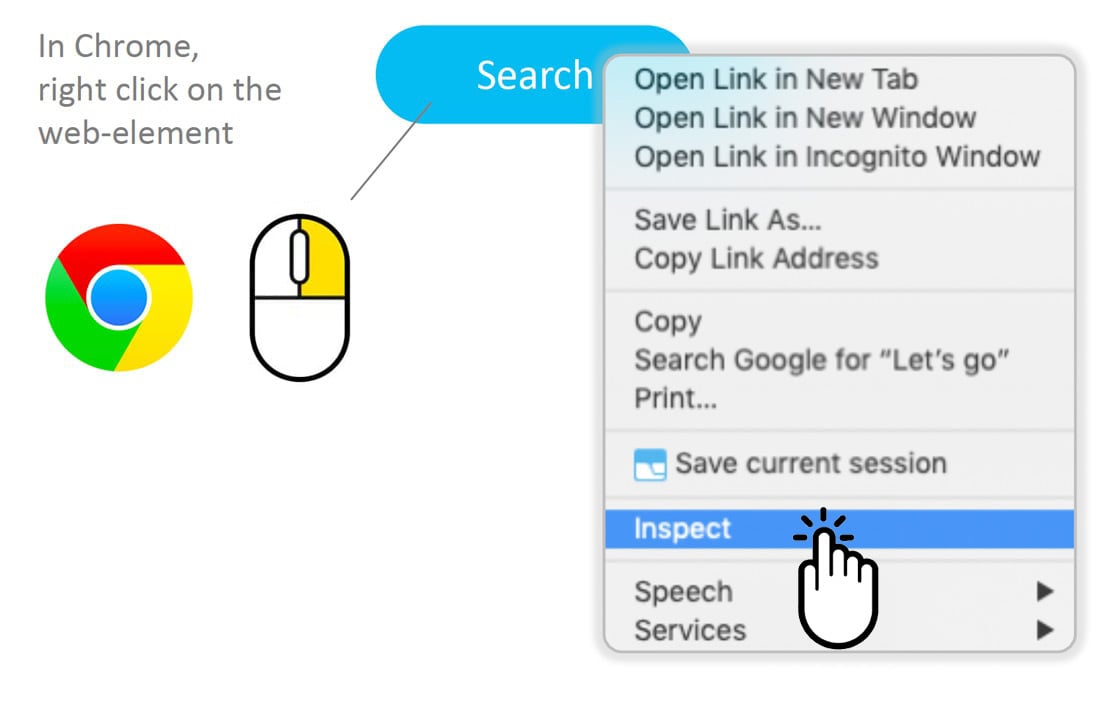
To bring up the website's source code, right-click and select inspect.
Step 3:
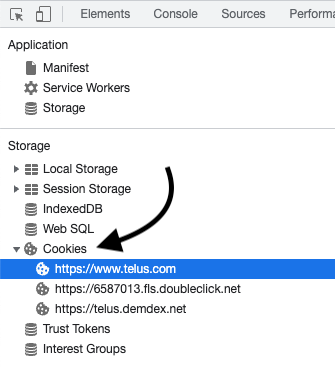
Open the Application tab.

Step 3:
Find the cookie
Under the storage panel, open cookies, and click on the link that resembles the website's URL.
Step 4:
Find the correct cookie property
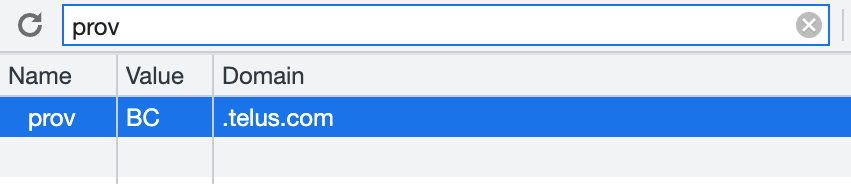
Next, look through all the stored properties until your find a value that makes the most sense for the value you want to carry over to Visualping. In this example, we see prov with the value BC. This would indicate that the province is British Columbia.
Step 5:
Create the cookie action in Visualping
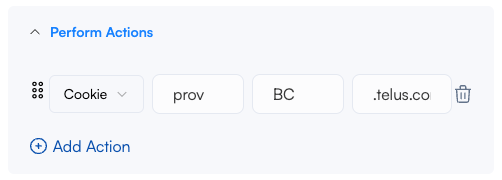
Then, create a cookie action in Visualping, and replace the fields with the values you found in the previous step. You will need to enter the Name in the first field, the Value in the second, and the Domain in the third.
Frequently Asked Questions
I can't find a property matching what I need.
If you can't find a good property, it's possible that it just doesn't exist. In that case you will need to use other action types to get where you need. For example, you could use type & click actions to enter your ZIP code on the website to see products available locally.
I'm having issues, what can I do?
If you have any questions, or if you are running into technical issues, reach out to our Support team. Include the page URL, what you were trying to do, and any error messages so we can help faster.