
How area selection works
Contents of this article
What is area selection?
By default, Visualping monitors the whole page. Area selection lets you draw a box around one part of the page, such as a price, a stock status, or a list of headlines, so Visualping focuses on that part. It's sometimes called cropping.
It's useful when a page has a lot of content you don't care about, such as menus, ads, or recommended products, and you want your monitor to concentrate on one section.
How area selection works
You draw the area on the preview. Visualping loads the page and shows you a preview. You draw a box around the part you want to monitor, and the area is saved with the monitor as a rectangle on the page.
The same area is used on every check. Each time Visualping checks the page, it looks at the area you saved.
Your area is highlighted in the results. In the difference modal, the Spotlight toggle dims everything outside your area, so you can see exactly what changed in it. Spotlight only appears for monitors with a selected area. See Using the difference modal.
What you see in the preview is what gets monitored. If the content only appears after you click, scroll, or close a popup, set up actions first so it shows in the preview before you draw your area.
In AI Mode, your area is a focus, not a filter. It tells Visualping which part of the page you care about, and it's highlighted in the results. Changes elsewhere on the page can still appear in the change list but will not set off an alert. To make sure you're only alerted about what matters, also describe it in the Alert me when field. See Making a Strong Prompt for Important Alerts.
Selecting an area
Step 1:
Load the page
To set an area on a new monitor, click Start monitoring on your dashboard, paste the URL, and click Go. To change the area of an existing monitor, open the monitor's settings.
Step 2:
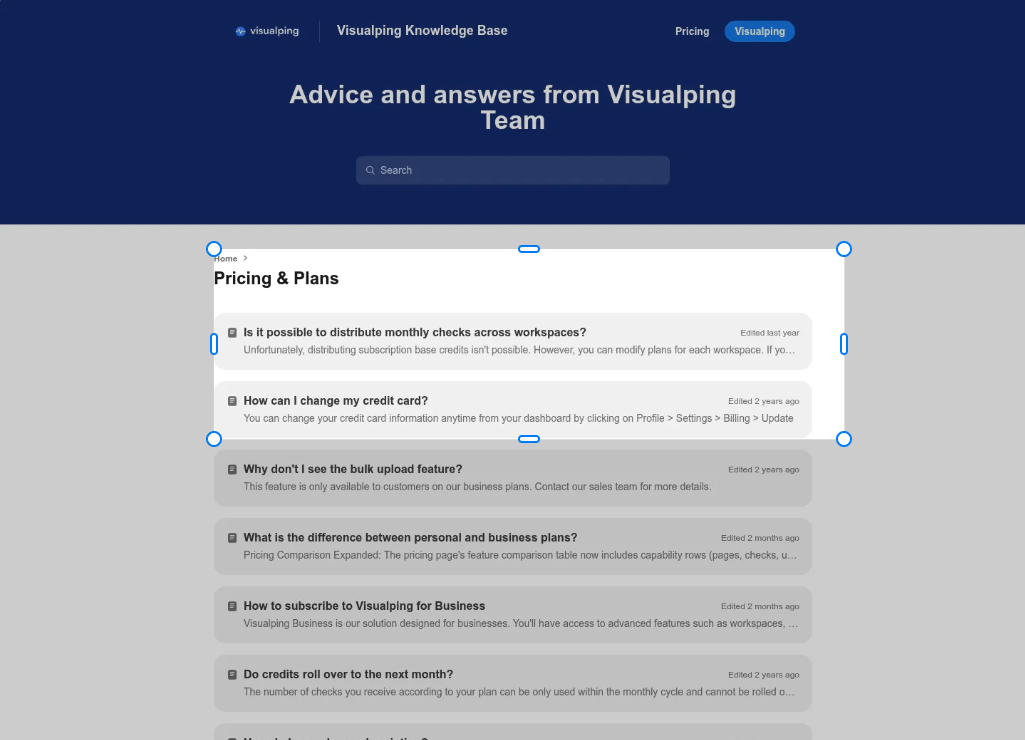
Draw a box around the part you want or click on a area you want monitored
Click and drag on the preview to draw a box around the part of the page you want to monitor.
Step 3:
Check the box and save
Make sure the box covers everything you want to monitor, with a little room to spare in case the text gets longer, such as a price that gains an extra digit. Then click Start Monitoring, or Save if you're editing an existing monitor.
Changing or removing an area
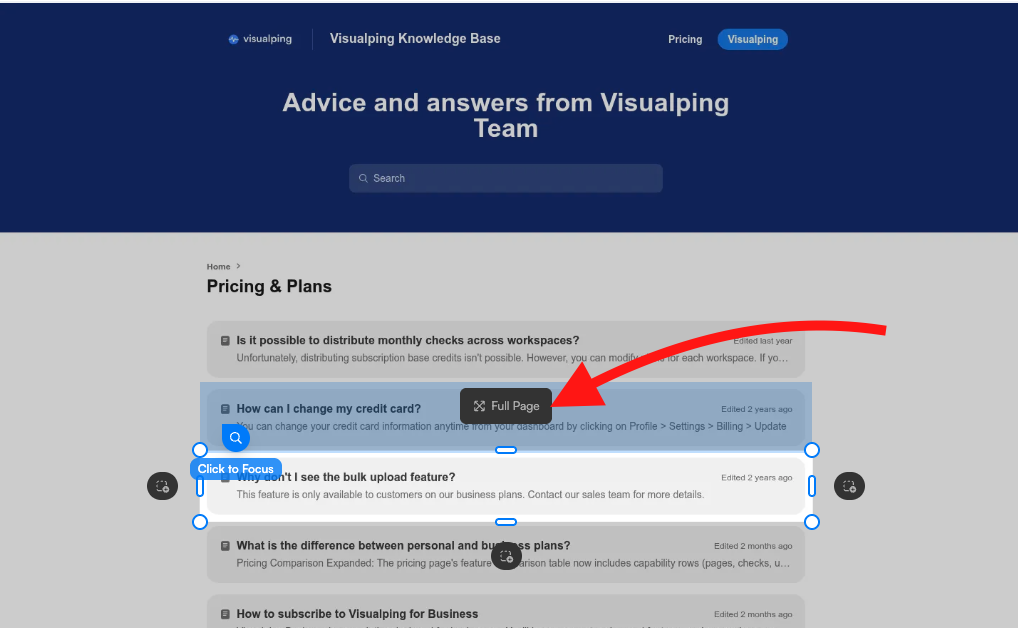
To change the area, open the monitor's settings and draw a new box on the preview. Clicking and dragging on the cropped area will move the monitored area. To go back to monitoring the whole page, hover over the monitored area and click on Full page. You will see that the monitored area will disappear.
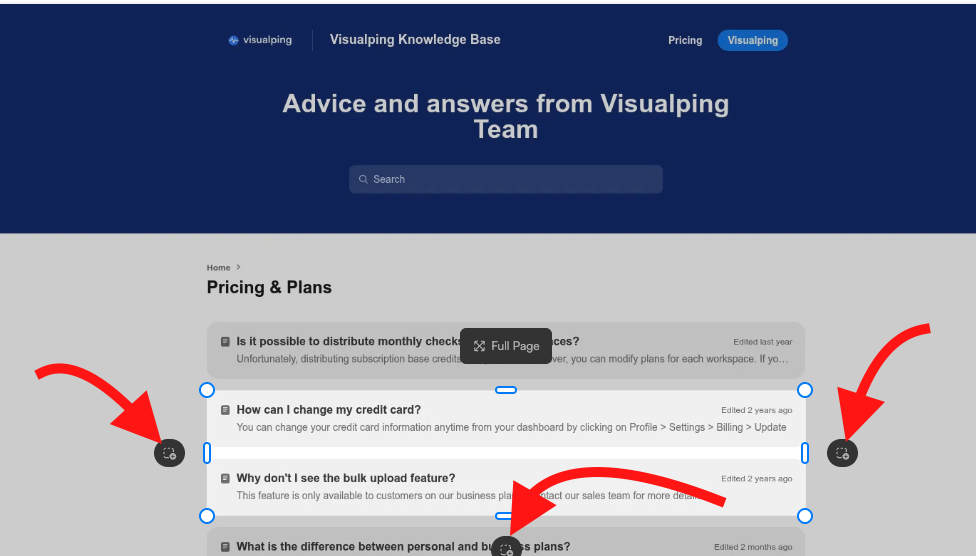
Pro tip: If you were to click on the buttons next to the monitored area shown in the arrows, you will be able to remove snapping. This allows you to move/resize the monitored area without the selected area automatically snapping onto the closest element.
Which monitors can use an area?
Compare type | Area selection |
AI Mode (default) | Available, and optional. See How to monitor specific text. |
Text changes (legacy) | Not available. Text changes always compares the text of the whole page. To focus on specific text, use keywords. |
If your monitor uses Visual changes or Element changes
The Visual changes and Element changes compare types were retired on October 4, 2026. They're no longer offered on new monitors, but existing monitors keep working:
Visual changes monitors keep running with their selected area. When you edit and save one, it switches to AI Mode and keeps its area. After the switch, the change threshold no longer applies and style-only changes, such as a colour change, no longer trigger alerts.
Element changes monitors keep running and keep watching the same element. When you edit and save one, it switches to AI Mode and keeps watching the same element. If that element no longer exists on the page, you'll be asked to select an area instead.
Limitations
One area per monitor. A monitor can only have one box. To watch two separate parts of a page, create two monitors, or monitor the whole page and describe both parts in Alert me when.
Changes inside your area still count. Countdown timers, rotating banners, live prices, and ads inside your area are picked up as changes. Make the area smaller so it avoids them, hide them with the block action, or tell the AI to ignore them in Alert me when. See How to reduce false positives.
A redesigned page can break your area. If a page's layout changes, your area may no longer line up with the content you wanted. This may cause issues as you may not be alerted to future alerts if they are outside the monitored area.
Very long pages are cut off. Visualping captures up to roughly 10,000 pixels of page height. Anything below that isn't captured, so you can't select an area there. See page limitations.
Turning on Mobile view clears your area. If you need Mobile view, turn it on first, then draw your area.
Changing the compare type can clear your area. Switching between AI Mode and Text changes can remove your selected area. Check it again after you change the compare type.
Areas are set one monitor at a time. Bulk editing can't change a monitor's area, and monitors created with bulk import or the Bulk tab of the monitor creator monitor the full page. To add an area, open each monitor's settings.
Frequently Asked Questions
Do I need to select an area?
No. By default, Visualping monitors the whole page. Select an area only if you want to focus on one part of it.
My selected area disappeared. Why?
This usually happens after you turn on Mobile view or change the compare type. Draw your area again.
Can I select an area in Text changes?
No. Text changes compares the whole page. Use keywords to focus on specific words, or switch to AI Mode to use an area. See How to monitor specific text.
I'm having issues, what can I do?
Reach out to our Support team at support@visualping.io. Include the page URL, a screenshot of the area you selected, and what you expected to be alerted about so we can help faster.