
How to copy and paste job settings.
Contents of this article
Why use the copy and paste feature
You can save time configuring monitor settings when creating monitors. With the Copy and Paste monitor settings functions, you can quickly copy an existing monitor's settings and paste them when creating new monitors individually or in bulk. This makes creating and duplicating monitors an easy task.
Note that in certain situations it is easier or better to use presets. For example when creating many jobs with the same or similar settings over a long time. Presets are easier in that case since you do not need to copy the settings every time, and you can instead rely on the preset being saved on your account.
How to copy job settings
You can copy the job settings of an existing job from the dashboard in 2 ways. The copied settings are:
Actions
Adjustments
Notifications
Advanced Schedule
In the Dashboard
Step 1:
Click the job you want to copy the settings from
From the dashboard, select the job you want to copy the settings from.
Step 2:
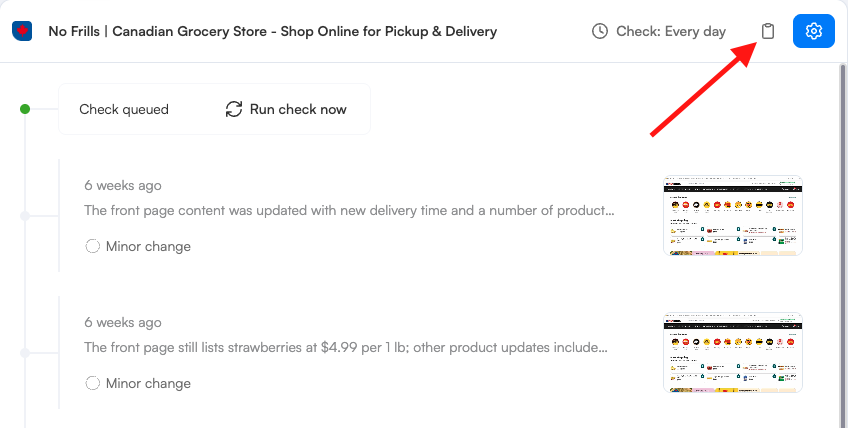
Click the Clipboard icon at the top right of the job details section
In the Job Settings
Step 1:
Click the job you want to copy the settings from
From the dashboard, select the job you want to copy the settings from.
Step 2:
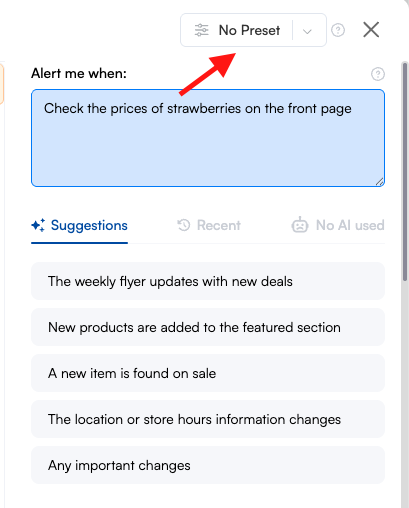
Click the Preset Dropdown Box found at the top right of the job details section to open the job settings
Step 3:
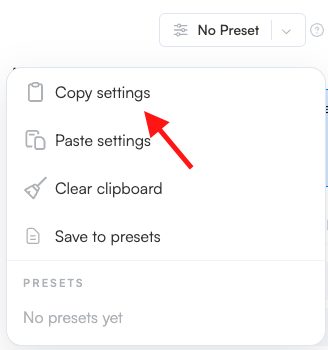
Click on the Copy settings option from the list of actions
How to paste job settings during bulk import
You can paste the job settings when creating jobs in bulk. Important: this only works when bulk importing, and not bulk editing.
Step 1:
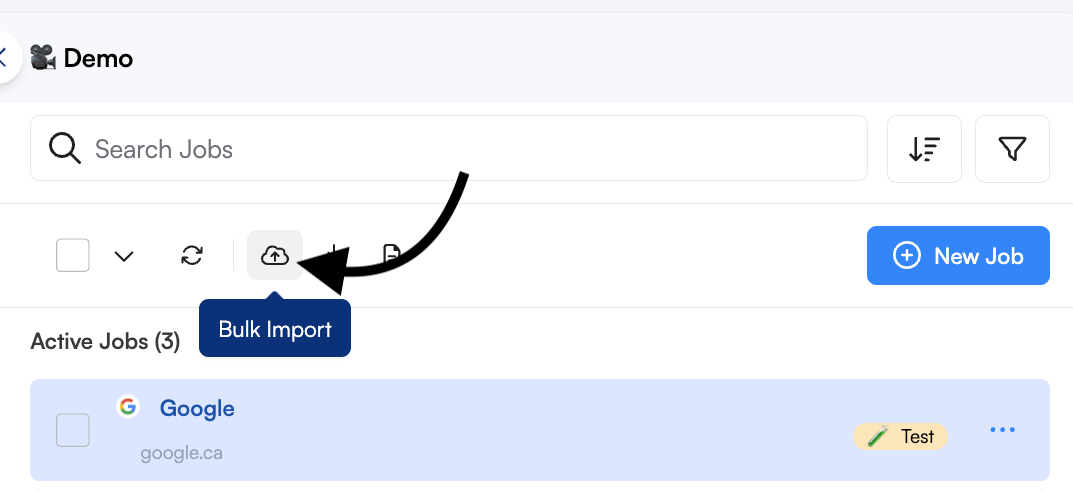
Click the Bulk import icon
From the dashboard, click on the Bulk import icon.
Step 2:
Click on the Preset Dropdown Box found on the top right
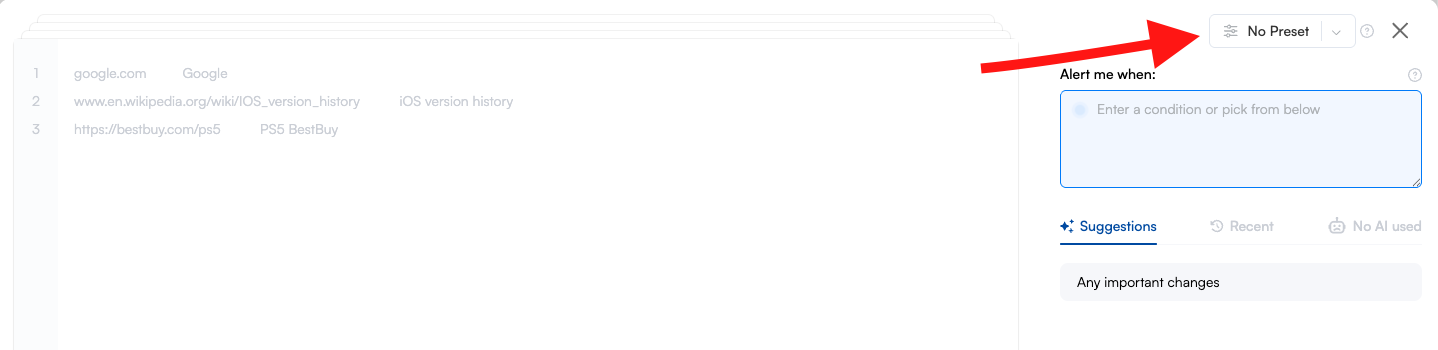
Step 3:
Select the Paste settings option
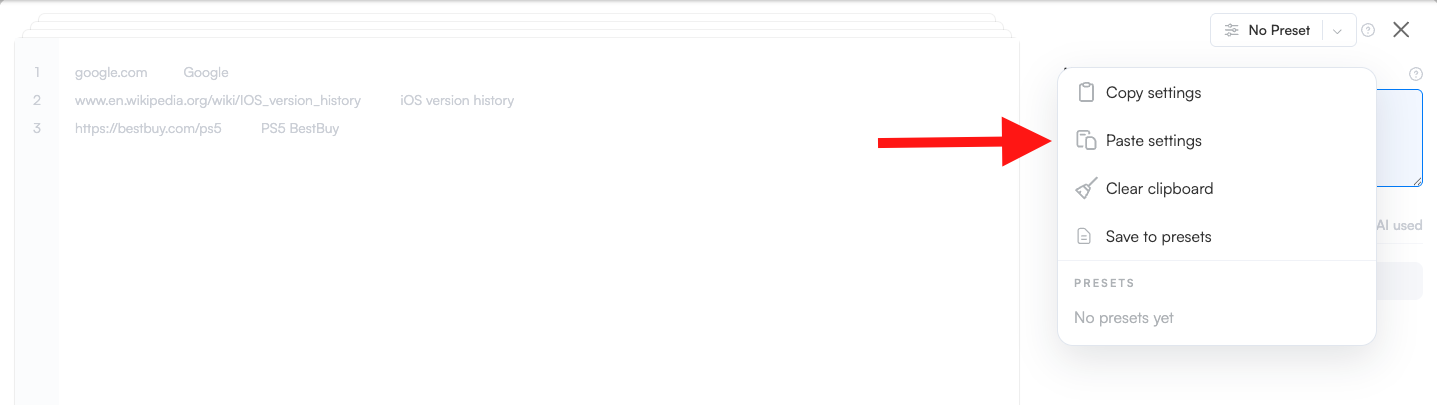
Step 4:
Enter the URL(s) of the page you want to monitor, set the job frequency, add a relevant prompt, and edit other relevant settings then click Start monitoring
How to paste job settings to a new or existing job
You can paste the job settings when creating a new job or from the settings of an existing job.
Step 0:
Copy the settings of the template job
Step 1:
Open the settings
From the dashboard, click on the New monitor icon or open the settings of an existing job.
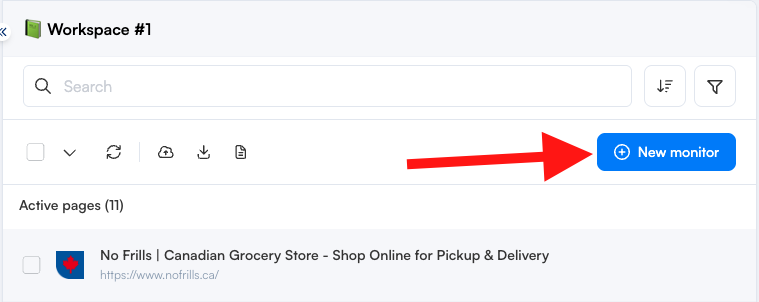
Step 2:
Click the Preset Dropdown Box found at the top right
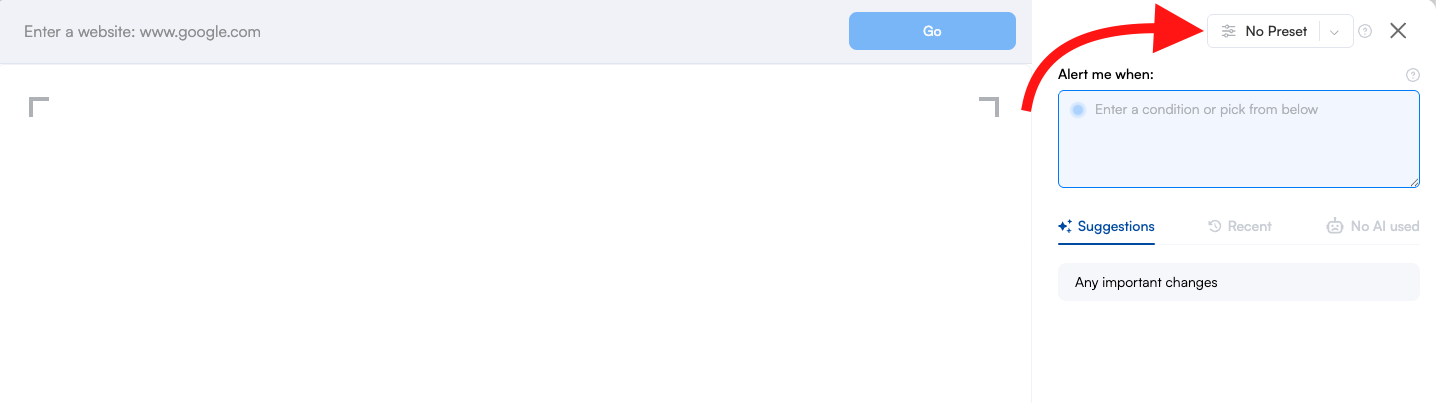
Step 3:
Select the Paste setting option
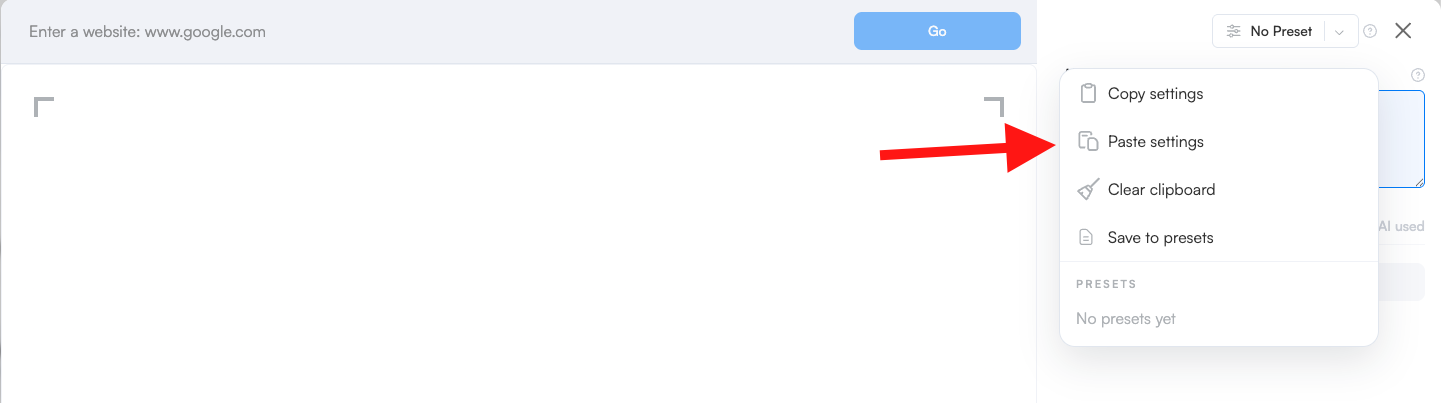
Step 4:
Save the job
Enter the page URL you want to monitor, set the job frequency, add a relevant prompt, modify the job settings as needed, then click Start monitoring. Or simply save the job.
Frequently Asked Questions
Can I paste job settings when bulk editing?
No. Pasting job settings is not supported when bulk editing jobs.
Are job frequency and threshold copied too?
Yes. Job frequency and threshold are included when you copy or paste job settings.
Why do I need clipboard permission for this feature?
Browser clipboard permission is required to copy and paste job settings, since Visualping uses your browser's clipboard to temporarily store the settings you copy.