
How do I manage user profiles and permissions?
Contents of this article
Before you start
As an Admin on a Business plan, you can change an existing user's name, role, and workspace access. This lets your team work together while keeping each person's access limited to the workspaces they need.
Each user has one of three roles:
Admin: Has access to every workspace in the organization and can manage users, billing, and settings.
Editor: Can create and edit monitors in the workspaces they're assigned to.
Viewer: Can view monitors in the workspaces they're assigned to, but can't edit them.
For a full breakdown of what each role can do, see User roles. To add someone new to your team, see Invite a user to your team.
Managing user profiles, roles, and permissions
Step 1:
Open the Users page
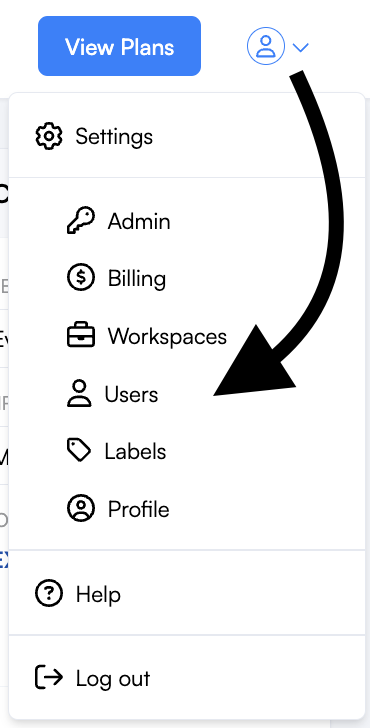
Navigate to Settings > Users. This page is only available to Admins.
Step 2:
Edit the user
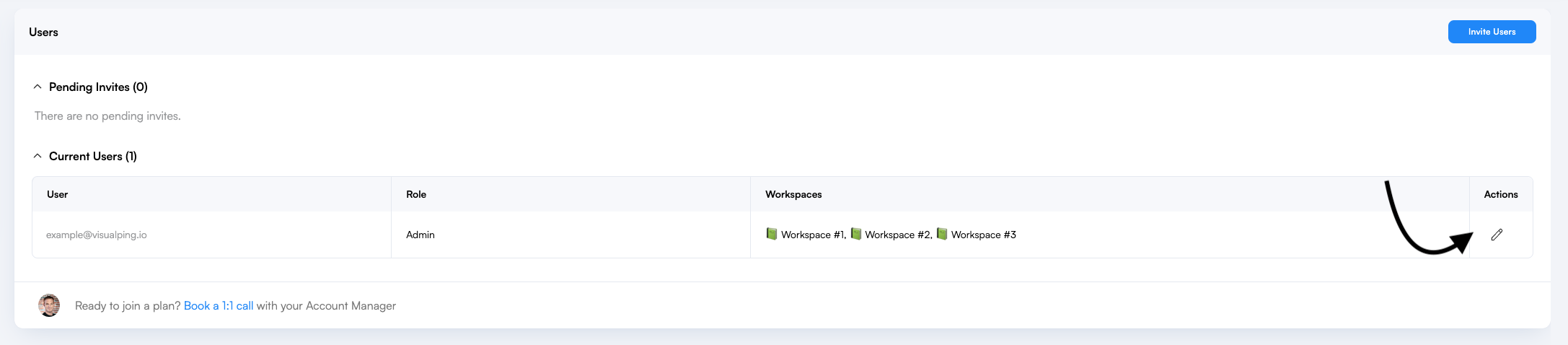
Find the user whose role or workspaces you want to change, then click the pencil icon.
Step 3:
Update and save
Edit the user's name or role, or add or remove the workspaces they belong to. Then click Save.
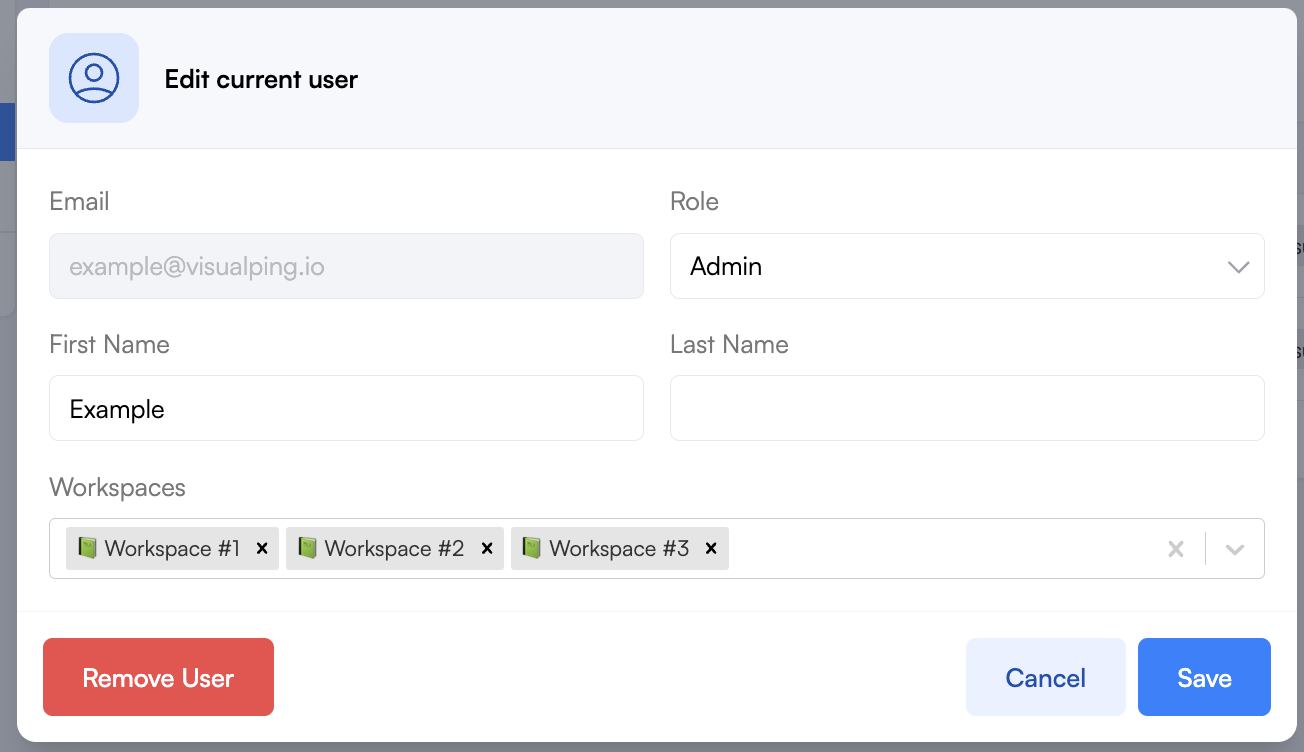
To remove a user from the team instead, click Remove User in the same menu. See How do I remove users from my team?
What happens when you change access
Changing a user to Admin gives them access to every workspace in the organization. You don't need to choose workspaces for Admins.
Changing an Admin to Editor or Viewer limits them to the workspaces you select, so make sure to choose the workspaces they still need.
Adding a user to a workspace lets them see all of its monitors. Every member of a workspace receives its email alerts, unless they mute it.
Removing a user from a workspace means they can no longer see its monitors or receive its alerts. The monitors themselves are not changed.
Frequently Asked Questions
I don't see the Users page. Why?
Only Admins can manage users. Ask an Admin on your team to change your access, or to make the change for you.
Can a user have different roles in different workspaces?
Yes. For example, a user can be an Editor in one workspace and a Viewer in another. Admins are the exception, because the Admin role always applies to every workspace.
I added my teammate to a workspace, but they still can't see a monitor. Why?
Make sure the monitor is in the workspace you added them to, and that they've switched to that workspace on their dashboard.
I'm having issues, what can I do?
Reach out to our Support team at support@visualping.io. Include the user's email address and the workspaces involved so we can help faster.